
An APPLE.COM/BILL CUPERTINO CA charge on your credit card, debit card, or bank statement is usually connected to a purchase or subscription billed through Apple. It may involve an App Store purchase, in-app purchase, Apple subscription, iCloud+ storage, Apple Music, Apple TV content, Apple Books, Apple Arcade, AppleCare, or another service linked to an Apple Account.
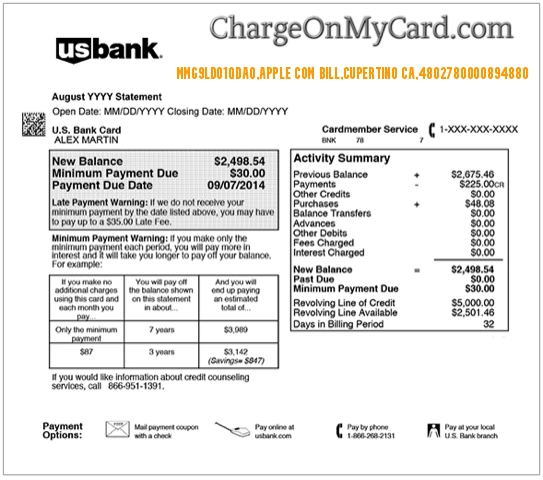
The descriptor may include a long alphanumeric reference such as MMG9LD01QDA0 or a transaction number such as 4802780000894880. Those strings may be payment or transaction references and do not necessarily identify the app, subscription, or family member responsible for the charge.
What Is the APPLE.COM/BILL Cupertino CA Charge?
APPLE.COM/BILL is a billing descriptor Apple uses for certain digital purchases, subscriptions, and services. The Cupertino, CA location reflects Apple’s connection to Cupertino, California, and does not mean that someone physically used your card at a store in Cupertino.
The charge may be associated with:
- An App Store app purchase
- An in-app purchase
- An automatically renewing app subscription
- Apple Music
- Apple TV or movie purchases
- Apple TV+ where separately billed
- iCloud+ storage
- Apple Arcade
- Apple Books
- An AppleCare subscription or payment plan where applicable
- A purchase made by a member of an Apple Family Sharing group
- Several Apple purchases grouped into one transaction
Common Apple Billing Statement Variations
- APPLE.COM/BILL
- APPLE COM BILL
- APPLE.COM BILL CUPERTINO CA
- APPLE COM BILL CUPERTINO CA
- CHECKCARD APPLE COM BILL CUPERTINO CA
- PP*APPLE.COM/BILL CA
- APPLE.COM/BILL 95014
- APPLE BILL CUPERTINO
- BILL CUPERTINO CA
- APPLE SERVICES
- ITUNES.COM/BILL
- APPLE.COM/BILL followed by a reference number
- MMG9LD01QDA0 APPLE COM BILL CUPERTINO CA
- APPLE COM BILL CUPERTINO CA 4802780000894880
The wording can vary by bank, card issuer, country, payment method, transaction processor, and available statement space.
What Do MMG9LD01QDA0 and 4802780000894880 Mean?
The strings MMG9LD01QDA0 and 4802780000894880 appear to be transaction-specific references rather than Apple product names.
They could represent:
- A merchant transaction reference
- A payment-processor identifier
- An authorization or settlement number
- A reference included by the bank
- Internal information connected to one particular transaction
These numbers alone normally will not tell you which app, subscription, movie, or service was purchased. Use the charge amount and date to search Apple purchase history.
Why Apple May Have Charged Your Card
- You bought an app from the App Store.
- You made an in-app purchase inside a game or service.
- An Apple or third-party app subscription renewed.
- Your iCloud+ storage plan renewed.
- You purchased music, a movie, a television program, or an Apple Book.
- A free trial converted to a paid subscription.
- A family member made a purchase through Family Sharing.
- Apple grouped multiple purchases into one charge.
- A previously pending purchase posted later.
- Your Apple Account or card information may have been used without permission.
Is APPLE.COM/BILL the Same as Apple Pay?
No. APPLE.COM/BILL and Apple Pay are different.
APPLE.COM/BILL generally indicates that Apple billed the purchase or subscription through an Apple Account. Apple Pay is a digital-wallet payment method that can be used with outside retailers, restaurants, apps, websites, and other merchants.
For example:
- An iCloud+ subscription may appear as APPLE.COM/BILL.
- A purchase from a grocery store made with Apple Pay normally displays the grocery store’s merchant name.
- An app subscription purchased through the App Store may appear as APPLE.COM/BILL.
- A payment made with a card stored in Apple Wallet remains a transaction with the outside merchant.
If the transaction appears only in Apple Wallet and not in Apple purchase history, contact the outside merchant or the card issuer rather than assuming Apple sold the product.
Why the Charge Amount May Be Unfamiliar
Apple may group several purchases into one transaction. The amount on your statement may therefore represent multiple smaller purchases instead of one item.
The total could include:
- Several apps or in-app purchases
- Purchases made on different days
- A subscription and a separate app purchase
- Purchases by more than one family member
- Applicable taxes
- Several low-cost transactions combined into one charge
Search purchase history by the exact statement amount and review the surrounding dates.
How to Check Apple Purchase History
- Visit Apple’s official purchase-history page or open the App Store on your Apple device.
- Sign in with the Apple Account that may have made the purchase.
- Open Purchase History.
- Search for the exact charge amount.
- Adjust the date range if the purchase is older than the default period.
- Open each matching purchase to review its details.
- Repeat the process for any other Apple Accounts used in your household.
Official purchase-history help is available at Apple Support: View your purchase history.
Check Every Apple Account You Use
A household may have more than one Apple Account. The charge could be associated with:
- Your current personal Apple Account
- An older Apple Account
- A work or school account
- A child’s account
- A spouse or partner’s account
- An account used on an older iPhone, iPad, Mac, or Apple TV
Search every email address for Apple receipts and invoices. Apple receipts usually identify the app, subscription, media item, account, and amount.
Could Family Sharing Explain the Charge?
Yes. With Apple Family Sharing, the family organizer’s payment method may be used for purchases made by other members, depending on the family’s settings and available account balances.
Ask family members whether they:
- Bought an app
- Made an in-game purchase
- Started or renewed a subscription
- Rented or purchased a movie
- Upgraded storage
- Used another Apple Account
For children’s accounts, review purchase-approval and Ask to Buy settings.
Could It Be an Apple Subscription?
Many APPLE.COM/BILL charges involve subscriptions. The subscription may be from Apple or from a third-party app billed through the App Store.
Examples include:
- Apple Music
- Apple TV+
- Apple Arcade
- iCloud+
- Apple News+
- Apple Fitness+
- Apple One
- Streaming apps
- Dating apps
- Photo or video apps
- Productivity software
- Fitness and wellness apps
- Games and game memberships
The statement may say Apple rather than the individual app name because Apple processed the subscription payment.
How to Review and Cancel Apple Subscriptions
- Open Settings on your iPhone or iPad.
- Select your name or Apple Account.
- Select Subscriptions.
- Review active and inactive subscriptions.
- Select the subscription you want to manage.
- Choose the cancellation option when available.
- Save a screenshot or confirmation showing the expiration date.
You can also review subscriptions through the App Store or other Apple account-management options.
Canceling normally stops future renewals. It may not immediately refund the current billing period.
Why Did a Free Trial Become an Apple Charge?
A free or discounted trial may convert to a paid subscription unless canceled before the renewal deadline. The charge may appear under APPLE.COM/BILL rather than the app’s public name.
Review:
- The original trial confirmation
- The trial expiration date
- The subscription renewal amount
- The Apple Account used to start the trial
- Whether another family member began the trial
What Is PP*APPLE.COM/BILL CA?
PP*APPLE.COM/BILL CA is another Apple-related statement variation reported by cardholders. The added prefix may result from the way a bank, processor, payment method, or statement system formats the transaction.
The most useful identifying portion is still APPLE.COM/BILL. Search Apple purchase history using the exact amount and date before relying on the prefix to identify the purchase.
Why Does the Statement Say Cupertino, California?
Cupertino, California is strongly associated with Apple’s corporate operations. A Cupertino location in the billing descriptor does not mean the card was physically presented in Cupertino.
The location may reflect Apple’s merchant, corporate, or payment-processing records.
Is APPLE.COM/BILL Legitimate?
APPLE.COM/BILL is a legitimate Apple billing descriptor. However, that does not prove that every transaction displaying the name was authorized by you.
The charge may be valid if:
- It appears in Apple purchase history.
- You received a matching receipt from Apple.
- It matches an active subscription.
- A family member recognizes the purchase.
- The amount represents several grouped purchases.
Investigate the transaction if no Apple Account shows the purchase, nobody in the household recognizes it, or other unfamiliar transactions appear.
Apple Official Billing and Support Resources
- Apple Billing Support: Apple subscriptions and billing
- Unrecognized Apple Charges: Get help with apple.com/bill charges
- Purchase History: View Apple purchase history
- Request a Refund: Report a problem or request an Apple refund
- Apple Support: Contact Apple Support
- Manage Subscriptions: Cancel an Apple subscription
Use Apple’s official support website rather than a phone number found in an advertisement or an unofficial search result.
How to Request an Apple Refund
- Visit reportaproblem.apple.com.
- Sign in with the Apple Account associated with the charge.
- Select the option to request a refund.
- Choose the reason for the request.
- Select the app, subscription, or purchase.
- Submit the request.
- Review the request status later through the same site.
Refund availability depends on the transaction, location, circumstances, and Apple’s applicable terms.
What If You Cannot Find the Purchase?
If the charge does not appear under your main Apple Account:
- Check every other Apple Account you use.
- Ask members of your Family Sharing group.
- Search all email accounts for “receipt from Apple” or “invoice from Apple.”
- Search Apple purchase history by the exact amount.
- Check whether multiple purchases were grouped together.
- Review subscriptions on older Apple devices.
- Contact Apple through its official billing-support page.
- Ask your bank for the complete merchant information.
What If You Do Not Own an Apple Device?
You can still have an Apple-related charge without currently owning an iPhone or Mac. Possible explanations include:
- An older Apple Account remains active.
- You subscribed through Apple on a device you no longer use.
- A family member used your payment card.
- Your card is attached to someone else’s Apple Account.
- Your payment information may have been used without authorization.
Search your email for Apple receipts and ask Apple Support whether the charge can be located using the available transaction information.
Why Are There Several Apple Charges?
Multiple APPLE.COM/BILL entries may represent:
- Separate app purchases
- Several subscription renewals
- Purchases by different family members
- A grouped charge plus another separate purchase
- A failed payment retried later
- A pending authorization and posted transaction
- Unauthorized account activity
Compare each posted charge separately with Apple purchase history. Do not assume every Apple transaction is a duplicate merely because the amounts are similar.
What If the Charge Is Pending?
A pending Apple transaction may change, disappear, or post under a slightly different amount or description. Pending transactions may not yet be eligible for every refund or dispute option.
If the charge appears unauthorized and other suspicious activity is present, contact your bank promptly. Otherwise, compare it with Apple purchase history once the transaction posts.
Could the Apple Charge Be Fraud?
An APPLE.COM/BILL charge is not automatically fraudulent. It commonly results from legitimate apps, subscriptions, media purchases, in-app purchases, and Family Sharing activity.
It may be unauthorized if:
- No Apple Account shows a matching purchase.
- No family member recognizes it.
- You cannot locate a receipt.
- Your Apple Account shows unfamiliar devices or purchases.
- The charge continues after a subscription was canceled.
- Additional unfamiliar transactions appear.
How to Secure Your Apple Account
If you suspect unauthorized Apple Account access:
- Change your Apple Account password.
- Review devices signed in to the account.
- Remove devices you do not recognize.
- Review trusted phone numbers and recovery information.
- Use two-factor authentication.
- Review purchase history and subscriptions.
- Contact Apple Support through the official website.
How to Dispute an APPLE.COM/BILL Charge
Gather:
- The exact statement descriptor
- The charge amount and date
- The transaction-reference numbers
- Apple receipts
- Purchase-history screenshots
- Subscription details
- Refund requests
- Messages exchanged with Apple
Contact Apple first if the transaction appears in Apple purchase history but involves an unintended purchase, subscription renewal, duplicate transaction, or refund problem.
If Apple cannot identify the purchase, no authorized user recognizes it, or you believe the card was used without permission, contact the card issuer using the official number on the back of the card.
Watch Out for Fake Apple Billing Support
Searches for Apple billing charges can lead to fake Apple support numbers, refund scams, phishing websites, and remote-access scams.
Do not give an unexpected caller:
- Your Apple Account password
- Your two-factor authentication code
- Your complete card or bank-account number
- Your device passcode
- Remote access to your iPhone, Mac, or computer
- Gift-card numbers
- Cryptocurrency
- A payment to “verify” or “secure” your account
Use Apple’s official support website and the official number on the back of your payment card.
Frequently Asked Questions About APPLE.COM/BILL
What is APPLE.COM/BILL Cupertino CA?
It is an Apple billing descriptor commonly associated with apps, in-app purchases, subscriptions, music, movies, iCloud+, and other Apple-billed services.
Is APPLE.COM/BILL a legitimate charge?
It is a legitimate Apple billing descriptor, but you should still confirm that the specific purchase was authorized.
Why does the charge say Cupertino?
Cupertino, California is associated with Apple’s corporate operations. The location does not mean the card was physically used there.
What is PP*APPLE.COM/BILL CA?
It is a variation of the Apple billing descriptor. Search Apple purchase history using the amount and date to identify the purchase.
What is MMG9LD01QDA0?
It appears to be a transaction-specific reference rather than the name of an app, product, or subscription.
Why does the amount not match one Apple purchase?
Apple may group multiple purchases into one charge. Family Sharing purchases and taxes may also affect the total.
Is APPLE.COM/BILL an Apple Pay purchase?
Usually not. Apple Pay is a payment method used with outside merchants, while APPLE.COM/BILL commonly identifies content or services billed by Apple.
How do I find out what Apple charged me for?
Review Apple purchase history, search by the exact amount, check subscriptions, search email receipts, and ask Family Sharing members.
How do I cancel an Apple subscription?
Open your Apple Account subscription settings, select the subscription, and choose the cancellation option when available.
Can I request a refund?
You can submit an eligible refund request through Apple’s official Report a Problem website.
Should I dispute the charge with my bank?
First review Apple purchase history, receipts, subscriptions, and family purchases. Contact the card issuer if Apple cannot identify it or the purchase remains unauthorized.
Related Apple Charge Guides
Related Resources
Help Other Cardholders Identify This Charge
If you saw APPLE.COM/BILL CUPERTINO CA, PP*APPLE.COM/BILL CA, MMG9LD01QDA0, 4802780000894880, or a similar Apple descriptor, please share what it was connected to in the comments.
Helpful details include whether it involved an app, in-app purchase, subscription, iCloud+, movie, Family Sharing purchase, grouped charge, free-trial renewal, refund, or unauthorized transaction.
Do not post complete card numbers, bank-account numbers, Apple Account email addresses, passwords, receipt numbers, transaction-reference numbers, device passcodes, two-factor authentication codes, or other private information.
Why Rely on ChargeOnMyCard.com?
ChargeOnMyCard.com researches confusing credit-card, debit-card, digital-service, subscription, payment, and bank-statement descriptors using official merchant information, billing guidance, transaction patterns, and cardholder reports when available.
Long reference numbers may apply only to one transaction. We focus on the reusable merchant descriptor while explaining how cardholders can safely investigate their individual purchase.
Disclaimer
ChargeOnMyCard.com is not affiliated with Apple Inc., Apple.com, the App Store, Apple Pay, Apple Music, Apple TV, iCloud, AppleCare, any app developer, payment processor, bank, card network, or financial institution. This page is for informational purposes only and is not financial, legal, banking, billing, refund, account-security, or fraud-prevention advice. Contact Apple and your card issuer directly about a specific transaction.