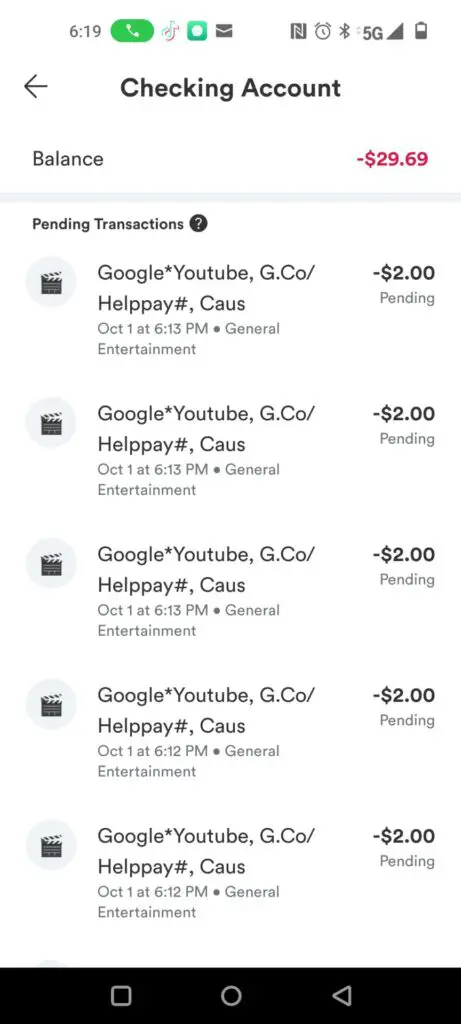
If you found a GOOGLE *YOUTUBE VIDEOS G.CO/PAYHELP# NS, Google YouTube charge, g.co/payhelp, g.co/helppay, or GOOGLE *YOUTUBETV G.CO/HELPPAY# CA charge on your credit card, debit card, PayPal account, Google Pay account, or bank statement, it is usually connected to a paid YouTube or Google billing transaction.
The charge may relate to YouTube Premium, YouTube Music, YouTube TV, a movie rental, a TV show purchase, a channel membership, Super Chat, Super Thanks, an app purchase, or another paid digital product connected to your Google Account. If you do not recognize the charge, check your Google payments activity, YouTube purchases and memberships, family members, and any Google accounts that may have used the same payment method.
Consumer Reports and Experiences
Consumers often report confusion because the statement descriptor may show Google, YouTube, G.CO/PAYHELP, G.CO/HELPPAY, or a shortened billing code instead of a clear product name such as YouTube TV, YouTube Premium, YouTube Music, a movie rental, or a one-time video purchase.
Common questions include: “What is this Google YouTube charge?”, “Why am I being charged by g.co/payhelp?”, “Is this YouTube TV?”, “How do I cancel Google YouTube billing?”, and “What if I never authorized this charge?”
If you have seen this descriptor, please share the exact wording, amount, whether it was YouTube TV, YouTube Premium, YouTube Music, a movie rental, or something else, and how you resolved it. Do not post your full card number, Google Account email, passwords, confirmation codes, or other private information.
What Is GOOGLE *YOUTUBE VIDEOS G.CO/PAYHELP# NS?
GOOGLE *YOUTUBE VIDEOS G.CO/PAYHELP# NS is a Google/YouTube billing descriptor that may appear after a YouTube-related purchase, rental, membership, or subscription. The g.co/payhelp or g.co/helppay wording usually points users toward Google’s payment-help resources.
This charge may be connected to:
- YouTube Premium
- YouTube Music Premium
- YouTube TV
- YouTube TV add-ons
- NFL Sunday Ticket or other YouTube TV add-ons
- Movie or TV show rentals
- Movie or TV show purchases
- Channel memberships
- Super Chat, Super Stickers, or Super Thanks
- Paid events or live-stream purchases
- Google Play or Google account billing tied to YouTube
- A subscription connected to a different Google Account
- A purchase made by a family member or another authorized user
Common Google YouTube Charge Variations
The same type of YouTube or Google transaction may appear in different ways depending on the card issuer, account, region, or product purchased:
- GOOGLE *YOUTUBE VIDEOS G.CO/PAYHELP# NS
- GOOGLE *YOUTUBE VIDEOS G.CO/HELPPAY# CA
- GOOGLE *YOUTUBETV G.CO/HELPPAY# CA
- GOOGLE *YOUTUBE TV G.CO/HELPPAY
- GOOGLE *YOUTUBEPREMIUM G.CO/HELPPAY
- GOOGLE *YOUTUBE MUSIC G.CO/HELPPAY
- Google YouTube charge
- Google YouTube videos charge
- Google YouTube g.co/payhelp
- YOUT G.CO/HELPPAY
- Google payhelp
- g.co/payhelp# us
- google*youtube super charges
- google*youtube helppay
- google*youtube charge
Why Did I Get a Google YouTube Charge?
You Have an Active YouTube Premium or YouTube Music Subscription
YouTube Premium and YouTube Music Premium are paid memberships. If you signed up directly through YouTube or Google, the billing descriptor may include Google, YouTube, g.co/payhelp, or g.co/helppay.
You Have a YouTube TV Subscription
If the descriptor includes GOOGLE *YOUTUBETV or YouTube TV g.co/helppay, the charge may relate to a YouTube TV base plan, add-on package, trial conversion, renewal, or other YouTube TV billing item.
You Bought or Rented a Movie or TV Show
One-time video rentals and purchases can also appear as Google YouTube or YouTube Videos charges. These may be easy to forget if the rental was made from a TV, phone, tablet, smart TV app, or shared family device.
You Paid for a Channel Membership, Super Chat, or Super Thanks
Some YouTube creators offer paid channel memberships or live-chat purchases. If someone used your Google Account or payment method for one of these features, the charge may appear under a Google YouTube descriptor.
A Family Member or Authorized User Made the Purchase
Before assuming fraud, ask whether a spouse, child, household member, employee, or other authorized user purchased YouTube TV, YouTube Premium, YouTube Music, a movie rental, a Super Chat, a channel membership, or another digital item.
The Charge Is Connected to a Different Google Account
Some users have more than one Google Account. A subscription may be active under an old Gmail address, work account, school account, family account, or account used on a smart TV.
How to Identify the Charge
1. Check Google Payments and Subscriptions
Start by reviewing your Google Account payment history and recurring subscriptions:
Sign in with every Google Account that may have used the card. Check transactions, payment methods, recurring payments, reservations, and subscriptions.
2. Check YouTube Purchases and Memberships
Open YouTube while signed into the Google Account that may have made the purchase. Then review purchases, memberships, and subscriptions:
Look for YouTube Premium, YouTube Music, YouTube TV, channel memberships, movie rentals, TV show purchases, or creator payments.
3. Check YouTube TV Billing
If the charge appears to involve YouTube TV, sign in to the Google Account used for YouTube TV and review billing, add-ons, free trials, and renewal dates.
4. Search Your Email
Search your email accounts for:
- Google YouTube
- YouTube Premium
- YouTube Music
- YouTube TV
- g.co/payhelp
- g.co/helppay
- Google Payments
- Google receipt
- YouTube receipt
- Movie rental
- Channel membership
- Super Chat
- Subscription renewal
Check old Gmail accounts, spam folders, promotions folders, and family accounts that may have been used on a phone, tablet, computer, streaming device, or smart TV.
How to Cancel a Google YouTube Subscription
If the charge is from YouTube Premium, YouTube Music, YouTube TV, or a recurring YouTube membership, cancellation usually must be completed through the Google Account or YouTube account that created the subscription.
- Sign in to the Google Account connected to the charge.
- Open YouTube Paid Memberships or Google Payments and Subscriptions.
- Find the active membership or recurring payment.
- Select manage, cancel, or deactivate renewal.
- Complete all confirmation steps.
- Save the cancellation confirmation.
- Check the next billing date to make sure renewal stopped.
Deleting the YouTube app, removing a smart TV app, signing out, or no longer using YouTube does not always cancel a paid membership. You usually need to cancel through the correct Google Account, YouTube account, Google Play subscription, or YouTube TV billing page.
How to Request a Refund or Report an Unauthorized Charge
If the Google YouTube charge was unauthorized, accidental, duplicated, tied to the wrong account, or connected to a subscription you already canceled, start with Google and YouTube support.
- Report unauthorized YouTube charges
- Report unauthorized YouTube TV charges
- Request a Google Play refund
- Google unauthorized transactions form
Gather the transaction date, amount, exact statement descriptor, the last four digits of the payment method, the Google Account involved if known, and screenshots of any receipts or billing pages. Do not share your full card number, password, security code, or two-factor authentication code.
When to Contact Your Bank or Card Issuer
Contact your bank or card issuer using the number on the back of your card if:
- No one in your household recognizes the charge
- You cannot find the charge in any Google Account
- You were charged after canceling
- Google or YouTube cannot identify the transaction
- The amount looks unusually high
- There are multiple unexpected Google YouTube charges
- You believe your card number may have been stolen
Your card issuer can help you dispute the transaction, block future charges, replace the card, or investigate possible fraud.
Google YouTube Charge Safety Tips
- Review all Google accounts connected to your payment method.
- Check YouTube Paid Memberships before disputing the charge.
- Ask family members before reporting fraud.
- Turn on purchase verification where available.
- Remove old payment methods from accounts you no longer use.
- Review YouTube TV add-ons and free-trial terms.
- Save cancellation and refund confirmations.
- Use only official Google or YouTube support pages for billing help.
- Be cautious of fake Google or YouTube support phone numbers posted online.
Frequently Asked Questions
What is GOOGLE *YOUTUBE VIDEOS G.CO/PAYHELP# NS?
It is usually a Google or YouTube billing descriptor for a paid YouTube transaction, such as a video purchase, rental, YouTube Premium, YouTube Music, channel membership, Super Chat, or another YouTube-related digital charge.
What is GOOGLE *YOUTUBETV G.CO/HELPPAY# CA?
This descriptor usually points to YouTube TV billing. It may relate to a YouTube TV monthly plan, trial conversion, add-on, renewal, or other YouTube TV charge.
Is g.co/payhelp a real Google link?
G.co is a Google-owned short-link format, and g.co/payhelp or g.co/helppay-style descriptors commonly point users toward Google payment-help resources. Still, you should verify the charge by signing into your own Google Account, not by clicking suspicious emails or text messages.
Why am I being charged by Google YouTube if I canceled?
You may have canceled the wrong Google Account, missed a final confirmation step, had another active subscription, used a different app store billing method, or had another family member using the payment method.
How do I find which Google Account is charging me?
Check every Google Account you use, including old Gmail addresses, work accounts, family accounts, smart TV accounts, and mobile-device accounts. Search email for receipts and review Google Payments and YouTube Paid Memberships.
Can YouTube charges come from a child or family member?
Yes. YouTube purchases, rentals, memberships, and subscriptions may be made by someone with access to your device, Google Account, family group, or payment method.
What should I do if I did not authorize the charge?
Use Google and YouTube’s official unauthorized-charge forms, check with family members, secure your Google Account, and contact your card issuer if the charge remains unexplained or unauthorized.
Related Google, Streaming, App, and Digital Charge Guides
- 1600 Amphitheatre Pkwy G.CO/PAYHELP charge
- Google SVCs/App charge
- Google Amazon Mobile charge
- Apple / 1 Infinite Loop charge
- Prime Video 888-802-3080 charge
- 30 Rockefeller Plaza / Peacock charge
- Digital Content Apps charge
Related Consumer Resources
- Need help with YouTube TV billing, cancellation, or refund support? Visit CustomerServiceNumbers.com’s YouTube TV customer service page.
- Looking for YouTube corporate office information or complaint resources? Visit CorporateOfficeHeadquarters.com’s YouTube corporate office page.
- Concerned that a message, phone call, or fake support page may be a scam? Visit ThinkItsAScam.com.
- Want to leave a public company review or complaint? Visit ZeroStars.org.
Why Trust ChargeOnMyCard.com?
ChargeOnMyCard.com helps consumers identify confusing credit card, debit card, PayPal, and bank-statement descriptors using available company information, official resources, payment clues, and reports from cardholders.
Google YouTube billing descriptors can be confusing because one Google payment method may be tied to YouTube TV, YouTube Premium, YouTube Music, movie rentals, channel memberships, family purchases, and multiple Google Accounts. Reader reports help others understand the exact wording, product connection, cancellation steps, and refund path.
Share Your Experience
Did you see GOOGLE *YOUTUBE VIDEOS G.CO/PAYHELP# NS, GOOGLE *YOUTUBETV G.CO/HELPPAY# CA, Google YouTube, g.co/payhelp, or a similar charge? Share the exact descriptor, amount, whether it was YouTube TV, YouTube Premium, YouTube Music, a video purchase, or an unknown charge, and how you resolved it. Please do not post private account or card details.
Disclaimer
ChargeOnMyCard.com is an independent consumer-information website and is not affiliated with Google, YouTube, YouTube TV, Alphabet, Google Play, any bank, card issuer, payment network, or financial institution. This page is for consumer education, charge identification, reviews, feedback, and user reports. Always verify billing details through your own Google Account, YouTube account, official Google support resources, and your financial institution.