
A GOOGLE SVCSAPP, GOOGLE *SVCS, GOOGLE SVCSAPPS, or similar entry on a credit card, debit card, or bank statement is likely connected with a Google business service, subscription, advertising account, application, or other Google-billed product.
The exact product cannot be identified from the word SVCS alone. Older GOOGLE SVCSAPP entries appear to have been used for Google Apps, business email, hosting, and related services, while a current GOOGLE*SVCS entry followed by a 10-digit customer number may identify Google Ads.
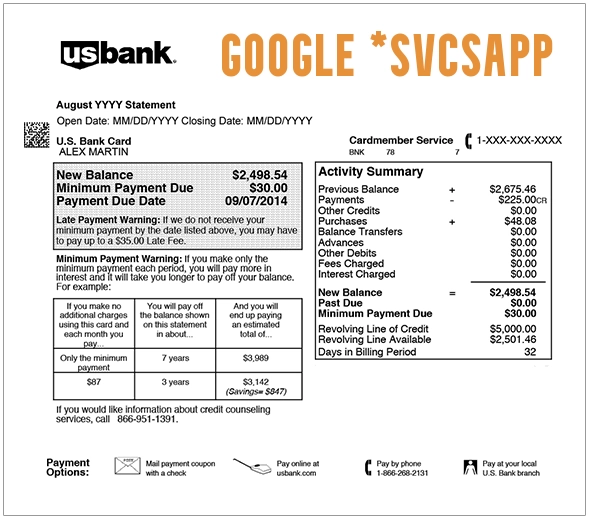
What Is the GOOGLE SVCSAPP Charge?
GOOGLE SVCSAPP appears to be older or shortened statement wording associated with services billed by Google.
Possible explanations include:
- A legacy Google Apps or G Suite account
- A Google Workspace subscription
- Business Gmail or domain email
- Google Workspace storage or an add-on
- A Google Ads account
- A Google Voice subscription or calling credit
- A Google Cloud service
- Google Fiber or another Google service
- A Google Play app or subscription
- A purchase connected with another Google Account
- A payment made by a family member, employee, or account administrator
- A temporary authorization or delayed transaction
- A transaction the cardholder did not authorize
The amount, complete descriptor, Google account, customer ID, domain name, and transaction history should be used to identify the product.
What Does SVCSAPP Mean?
The descriptor can be understood cautiously:
- GOOGLE: Indicates that the transaction may have been billed through Google.
- SVCS: Likely abbreviates “services.”
- APP: May be legacy wording connected with Google Apps or an abbreviated service field.
Google does not appear to publish a current character-by-character definition of GOOGLE SVCSAPP.
Do not assume that `APP` necessarily means:
- A mobile application
- One particular Google Play purchase
- Google Workspace
- Google Ads
- A recurring subscription
The rest of the descriptor is needed.
Is GOOGLE SVCSAPP a Google Workspace Charge?
It may be, especially when the transaction is older or relates to Google Apps, G Suite, business Gmail, domain email, storage, or another organization service.
However, Google’s current documented Google Workspace descriptor is generally:
GOOGLE WORKSPACE followed by the first seven letters of the organization’s domain name.
For example, a business using `examplecompany.com` might see shortened domain wording after GOOGLE WORKSPACE.
A Google Workspace charge may involve:
- Business Starter, Standard, Plus, or another Workspace edition
- User licenses
- Additional storage
- Google Vault
- Google Voice
- Other Workspace add-ons
- Prorated users or licenses
- An annual commitment
- A reseller-managed subscription
Do not identify a current generic GOOGLE *SVCS charge as Workspace unless the account, domain, invoice, or billing history supports that conclusion.
Could GOOGLE *SVCS Be a Google Ads Charge?
Yes.
Google officially documents Google Ads descriptors such as:
- GOOGLE*GOOG followed by a 10-digit Google Ads customer ID
- GOOGLE*SVCS followed by a 10-digit Google Ads customer ID
- GOOGLE*ADWS followed by a 10-digit Google Ads customer ID
- GOOGLE ADS. CC@GOOGLE.COM
A Google Ads customer ID is normally formatted as three groups of numbers, such as:
123-456-7890
Banks may remove the hyphens.
If the descriptor includes a 10-digit number:
- Compare it with every Google Ads account used by the business.
- Check personal, agency, manager, and client advertising accounts.
- Ask employees and outside marketing contractors.
- Review Google Ads Billing activity.
- Use Google’s official unidentified-charge troubleshooter.
Do not post the complete customer ID publicly.
What Is GOOGLRECOM?
The exact wording GOOGLRECOM is not listed in Google’s current official statement-descriptor guidance.
It may be:
- A misspelling entered during a search
- A bank truncation
- An incorrectly copied statement entry
- An OCR or screenshot-reading error
- A different merchant whose name only resembles Google
Google says its product and service charges generally begin with GOOGLE.
If the exact transaction does not clearly begin with Google:
- Copy the full descriptor directly from the statement.
- Ask the bank for the complete merchant name.
- Ask for the merchant website and telephone information.
- Ask whether the bank identifies the merchant as Google.
- Do not send Google a dispute for an unrelated merchant.
Common Statement Variations
Possible Google service and related variations include:
- GOOGLE SVCSAPP
- GOOGLE *SVCSAPP
- GOOGLE SVCSAPPS
- GOOGLE *SVCSAPPS
- GOOGLE SVCS APP
- GOOGLE *SVCS
- GOOGLE*SVCS followed by a customer ID
- GOOGLE*GOOG followed by a customer ID
- GOOGLE*ADWS followed by a customer ID
- GOOGLE WORKSPACE followed by domain wording
- GOOGLE APPS
- GOOGLE APPS followed by domain wording
- GOOGLE SERVICES
- GOOGLE *SERVICES
- POS GOOGLE SVCSAPP
- CHECKCARD GOOGLE SVCSAPP
- CHKCARD GOOGLE SVCSAPP
- PENDING GOOGLE SVCSAPP
- PREAUTH GOOGLE SVCSAPP
- POS REFUND GOOGLE SVCSAPP
Not every variation represents the same Google product.
How to Identify Which Google Product Charged You
- Record the complete descriptor, amount, date, and transaction status.
- Check whether a 10-digit customer ID follows GOOGLE*SVCS.
- Sign in to every Google Account used by the household or business.
- Review Google Payments Activity.
- Review Google Payments Subscriptions & services.
- Review Google Play order history.
- Check Google Workspace billing in every organization Admin console.
- Check Google Ads Billing in every advertising account.
- Review Google Voice, Google Cloud, YouTube, Google One, and other paid products.
- Search email for the amount, invoice, receipt, GOOGLE SVCS, Workspace, Ads, or Google payment.
- Ask family members, employees, administrators, marketing agencies, and other authorized card users.
- Ask the card issuer for the full merchant record.
Review Google Payments Activity
Google Payments provides a central location for many Google purchases.
Use:
- Individual purchases: Open Activity.
- Recurring payments: Open Subscriptions & services.
- Transaction details: Select the applicable payment.
Official routes:
If the payment is not displayed, sign in to every other Google Account that may have used the card.
Check Google Play Purchases and Subscriptions
A Google Play purchase normally includes the developer, application, or content type after `GOOGLE*`, but banks may shorten the wording.
Check:
- Open Google Play.
- Select the profile icon.
- Open Payments & subscriptions.
- Review Budget & order history.
- Review active subscriptions.
- Repeat the process for every Google Account on the device.
Official guidance:
Review Google Play order history
A family member may have purchased an app, in-app item, game content, movie, book, or subscription using the saved payment method.
How to Identify a Google Workspace Charge
For every business or organization domain:
- Sign in to the Google Admin console using an administrator account.
- Open Billing.
- Review Subscriptions.
- Review Payment accounts.
- Review Transactions and invoices.
- Match the charge with the domain, subscription, users, and billing date.
- Check additional storage, Voice, Vault, and other add-ons separately.
- Check whether a reseller controls billing.
Google Workspace invoices may include:
- The Workspace edition
- The number of licenses
- Prorated user changes
- Additional subscriptions
- Taxes
- Credits
- Threshold charges
Official guidance:
Understand Google Workspace bills and charges
Why Did the Google Workspace Amount Change?
Possible explanations include:
- Users or licenses were added or removed.
- A partial month was prorated.
- A free trial ended.
- The subscription edition changed.
- Additional storage or another service was added.
- Taxes changed.
- The organization reached a billing threshold.
- An annual commitment was billed.
Suspending a Workspace user does not necessarily stop that license from being billed. Review the actual license and subscription settings.
Why Are There Multiple Google Ads Charges?
Google Ads may charge more than once in a month because:
- The account reached its automatic payment threshold.
- The billing period ended.
- A manual payment and automatic payment overlapped.
- The business has more than one Ads account.
- Different customer IDs use the same card.
- A pending authorization appears beside the final charge.
- An actual duplicate charge occurred.
Compare the customer ID in the descriptor with every Google Ads account.
Official help:
Troubleshoot unidentified Google Ads charges
What Is a Pending Google Charge?
Google may place a temporary authorization to verify a payment method.
Google’s current documented pending descriptor is:
GOOGLE *TEMPORARY HOLD
A pending authorization may:
- Appear when a card is added
- Appear during checkout
- Match the amount of a completed purchase
- Disappear after several days
- Be replaced by the completed charge
Do not automatically count a pending authorization and completed payment as two transactions.
Contact the card issuer if both remain fully posted.
How to Cancel Google Workspace
Before canceling, save any email, Drive, Calendar, Chat, and shared-drive data that must be retained.
For a domain-managed Workspace account:
- Sign in to the Google Admin console.
- Open Billing.
- Select Subscriptions.
- Open the Google Workspace subscription.
- Select the cancellation option.
- Review what will happen to users and organizational data.
- Complete the confirmation steps.
- Save the cancellation record.
Official instructions:
On a Flexible Plan, cancellation generally stops new service charges, although usage since the last payment may still be billed.
An Annual or Fixed-Term Plan may leave a remaining contract balance.
Canceling Workspace can affect Gmail, Drive, Calendar, Meet, shared drives, administration, and organizational data. Do not cancel until needed information has been exported.
How to Stop Another Google Subscription
For a non-Workspace product:
- Open Google Payments.
- Select Subscriptions & services.
- Choose the applicable product.
- Select Manage.
- Use the cancellation option when available.
- Save the confirmation.
- Check whether access continues through the paid period.
Some products must be canceled through their own service, such as:
- Google Play
- YouTube
- Google Voice
- Google Fiber
- Google Cloud
- Google Ads
- A reseller-managed Workspace account
Cancellation normally stops future billing. It does not automatically refund a completed payment.
How to Request a Refund
Refund eligibility depends on the Google product, purchase type, timing, account terms, and reason for the request.
First:
- Identify the product and Google Account.
- Open the applicable transaction.
- Use the product’s official refund or support route.
- Save the request and case number.
- Monitor the original payment method.
Do not assume that canceling a Workspace subscription, Google Ads account, or Google Play subscription automatically refunds prior charges.
What If You Do Not Recognize the Charge?
- Confirm that the transaction begins with GOOGLE.
- Check whether it is pending or completed.
- Review every Google Account.
- Check Google Payments Activity.
- Check Subscriptions & services.
- Review Google Play history.
- Review Workspace and Ads accounts.
- Ask family members, employees, agencies, and authorized card users.
- Use Google’s official unrecognized-charge process.
- Ask the bank for the complete merchant details.
- Lock or freeze the card when appropriate.
- Dispute the completed transaction when no authorized purchase can be identified.
Official help:
Report unauthorized Google charges
If the exact charge does not begin with Google, contact the card issuer because it may belong to another merchant.
Account and Financial Privacy Warning
Do not post:
- Full or partial card numbers
- Card-ending digits
- Google Ads customer IDs
- Workspace domain-administrator details
- Payment profile IDs
- Invoice numbers
- Account email addresses
- Passwords or PINs
- Authentication codes
- Recovery information
- Complete receipts or statements
Provide private transaction details only through Google’s official support system or the financial institution.
Consumer Reports and Experiences
There is currently one visible public report on this ChargeOnMyCard.com page.
The commenter reported:
- An unrecognized $7.99 transaction
- A reference to “amphitheater”
- A request for a refund
The report does not establish:
- The complete statement descriptor
- Which Google product was involved
- Whether a Google Account contained the payment
- Whether another authorized user made the purchase
- Whether the entry was pending or completed
- Whether the charge was refunded
- Whether the bank approved a dispute
- The final outcome
ChargeOnMyCard.com cannot:
- Access a Google Account
- Identify a Workspace domain from a card number
- Access a Google Ads customer account
- Cancel a Google service
- Issue a Google refund
- Release a pending authorization
- Submit a bank dispute
Frequently Asked Questions About GOOGLE SVCSAPP
What is GOOGLE SVCSAPP on my credit-card statement?
It appears to be legacy or shortened Google service wording and may relate to Google Apps, Workspace, business email, hosting, advertising, or another Google-billed product.
Does SVCS mean services?
That is the likely abbreviation, but Google does not publish a current character-by-character definition of GOOGLE SVCSAPP.
Is GOOGLE SVCSAPP always Google Workspace?
No. Older use supports a Google Apps or Workspace connection, but the exact account must be verified.
What is the current Google Workspace descriptor?
Google says Workspace charges generally appear as GOOGLE WORKSPACE followed by the first seven letters of the organization’s domain name.
Can GOOGLE *SVCS be Google Ads?
Yes. Google officially documents GOOGLE*SVCS followed by a 10-digit Google Ads customer ID as a possible advertising descriptor.
What is the number after GOOGLE*SVCS?
When it contains ten digits, it may be a Google Ads customer ID. Compare it with each Ads account and do not post it publicly.
What is GOOGLRECOM?
The exact spelling is not an officially documented Google descriptor. Ask the bank for the complete merchant information before assuming it is Google.
How do I identify the Google account?
Review every Google Account, Google Payments Activity, Subscriptions & services, Google Play order history, Workspace Admin console, and Google Ads account.
Why are there two Google charges?
They may be separate services, multiple accounts, a temporary authorization and completed payment, Ads threshold billing, Workspace add-ons, or an actual duplicate.
How do I cancel Google Workspace?
A Workspace administrator can open Billing and then Subscriptions in the Admin console. Export needed organizational data before canceling.
Does canceling Workspace stop every Google charge?
No. Ads, Voice, Cloud, YouTube, Play, storage, and other subscriptions may bill separately.
Can I get a refund?
Refund rules depend on the specific Google product and payment. Identify the transaction and use that product’s official support route.
Should I dispute an unfamiliar charge?
First review all Google accounts, authorized users, subscriptions, pending holds, Workspace domains, and Ads customer IDs. Dispute a completed transaction promptly if no authorized purchase can be found.
Related Google and Digital-Service Charge Guides
- 1600 Amphitheatre Parkway Charge: Google Product and Billing Help
- 855-836-3987 Google Charge: App, Subscription, or Google Play Help
- Google YouTube Charge: Premium, TV, Music, and Video Billing Help
- Large Digital Goods Merchant Charge: Apps, Google, Games, and Subscriptions
- How to Investigate an Unrecognized Credit Card, Debit Card, or Bank Charge
- Google Enerjoy Charge
- Begamob Global Charge
A related Google guide does not establish which specific Google account, product, or person authorized the transaction.
Help Other Consumers Identify GOOGLE SVCSAPP
If you identified a GOOGLE SVCSAPP, GOOGLE *SVCS, GOOGLE SVCSAPPS, or similar transaction, please share nonprivate details.
Helpful information includes:
- The shortened descriptor without customer or account numbers
- The general amount
- Whether it was pending or completed
- Whether it matched Workspace, Ads, Voice, Play, Cloud, or another Google service
- Whether a domain name or customer ID appeared
- Whether another authorized user made the purchase
- Whether the service was canceled
- Whether a refund was requested
- How Google or the bank resolved it
Do not post card digits, Google Ads customer IDs, domain-administrator details, email addresses, invoice numbers, payment profile IDs, passwords, authentication codes, receipts, or complete statements.
Why Rely on ChargeOnMyCard.com?
ChargeOnMyCard.com researches confusing credit-card, debit-card, Google service, Workspace, advertising, application, subscription, authorization, refund, and bank-statement descriptions using current company information, official support resources, payment terminology, and visible public reports.
We distinguish legacy Google Apps wording from current Workspace descriptors, Google Ads customer IDs, Google Play purchases, pending authorizations, separate subscriptions, authorized-user activity, duplicate payments, and potentially unauthorized transactions.
Last reviewed: July 15, 2026.
Disclaimer
ChargeOnMyCard.com is not affiliated with Google LLC, Alphabet Inc., Google Workspace, Google Ads, Google Play, Google Payments, Google Voice, Google Cloud, YouTube, any Google reseller, account holder, cardholder, bank, credit union, card network, or payment processor. This article is provided for informational purposes only and is not financial, legal, advertising, cloud, subscription, account-security, payment, refund, dispute, or fraud-prevention advice. Contact Google and the applicable financial institution directly regarding a specific transaction.