
A GOOGLE EA MOBILE, GOOGLE *EA MOBILE, GOOGLE EA MOBILE GOOGLE.COM/CH GBR, or similar entry on a credit card, debit card, or bank statement is strongly associated with a Google Play purchase involving an Electronic Arts mobile game. Google is likely the billing platform, while Electronic Arts, also known as EA, is the game developer or publisher connected with the application. The purchase may involve virtual currency, game points, an in-game item, a bundle, subscription access, or other mobile-game content.
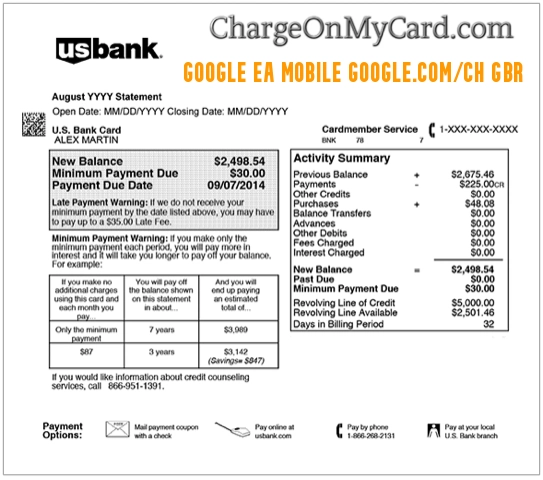
What Is the GOOGLE EA MOBILE Charge?
The GOOGLE EA MOBILE charge likely identifies a purchase made through Google Play for an EA mobile application. Google Play transactions can display:
- The application developer’s name
- The application name
- A content category
- Another shortened product or billing descriptor
Because Electronic Arts publishes mobile games and digital game content, the charge may have originated inside an EA game installed on an Android device.
What Could the EA Mobile Purchase Be?
Possible purchases include:
- Virtual currency
- Game points, coins, credits, gems, or tokens
- Player packs or item bundles
- Characters, vehicles, equipment, or upgrades
- A season pass or event pass
- A monthly or recurring game subscription
- A limited-time offer
- An advertisement-removal purchase
- A premium game feature
- A starter package
- A purchase made by a child or family member
- A purchase made through another Google Account on the device
The exact game and item should appear in Google Play order history and the confirmation email sent to the Google Account used for the transaction.
Google Is the Billing Route and EA Is the Game Company
A typical transaction may work as follows:
- The player opens an EA mobile game on an Android device.
- The player selects currency, points, a bundle, an item, or subscription access.
- Google Play processes the payment.
- The purchased content is delivered inside the EA game.
- The statement displays GOOGLE followed by EA or the application name.
Contact Google Play about:
- The payment
- The order history
- A Google Play refund request
- A subscription billed through Google Play
- An allegedly unauthorized Play transaction
Contact EA about:
- Missing game currency
- Missing items or rewards
- Content delivered to the wrong EA account
- Mobile-game progress
- Game errors or technical problems
- EA account access or security
EA generally cannot refund a purchase billed through Google Play. The refund request must normally be submitted through Google Play.
What Does GOOGLE.COM/CH GBR Mean?
The longer wording may appear as: GOOGLE EA MOBILE GOOGLE.COM/CH GBR The descriptor can be interpreted cautiously:
- GOOGLE: Identifies Google as the billing platform.
- EA MOBILE: Strongly suggests an Electronic Arts mobile game or related developer name.
- GOOGLE.COM: Points toward a Google-billed transaction.
- /CH: An unidentified statement, processing, or routing fragment.
- GBR: Appears to be a country, billing-region, acquiring, or processing-location field associated with Great Britain or the United Kingdom.
Google does not appear to publish a complete character-by-character definition of this exact descriptor. The `GBR` wording does not necessarily mean:
- The cardholder traveled to Great Britain
- The mobile device was physically located there
- The EA game account was registered there
- The purchase was made in person
- The card was issued by a British bank
Ask the card issuer for the full merchant country, currency, transaction type, and authorization details when the location matters.
Common GOOGLE EA MOBILE Statement Variations
Possible variations include:
- GOOGLE EA MOBILE
- GOOGLE *EA MOBILE
- GOOGLE*EA MOBILE
- GOOGLE E A MOBILE
- GOOGLE ELECTRONIC ARTS
- GOOGLE *ELECTRONIC ARTS
- GOOGLE EA MOBILE GOOGLE.COM
- GOOGLE EA MOBILE GOOGLE.COM/CH
- GOOGLE EA MOBILE GOOGLE.COM/CH GBR
- GOOGLE *EA MOBILE GBR
- GOOGLE PLAY EA MOBILE
- GOOGLE EA GAME
- PENDING GOOGLE EA MOBILE
- PREAUTH GOOGLE EA MOBILE
- POS GOOGLE EA MOBILE
- CHECKCARD GOOGLE EA MOBILE
- CHKCARD GOOGLE EA MOBILE
- POS REFUND GOOGLE EA MOBILE
Spacing, punctuation, location fields, and truncation can vary between financial institutions.
How to Identify the EA Mobile Purchase
- Record the full descriptor, amount, date, and status.
- Check whether the entry is pending or completed.
- Open Google Play on every Android device used in the household.
- Switch between every Google Account on each device.
- Review each account’s Google Play order history.
- Review active Google Play subscriptions.
- Search every email account for a Google Play receipt matching the amount.
- Check every EA mobile game installed or recently deleted.
- Review in-game currency, item, pack, and subscription histories when available.
- Ask children, spouses, relatives, and other authorized card users.
- Review Google Payments Activity and Subscriptions & services.
- Ask the card issuer for the complete merchant and authorization record.
Google Play sends a confirmation email to the Google Account used for a purchase. The receipt normally includes the product, price, date, and order number.
How to Review Google Play Order History
On an Android device:
- Open Google Play.
- Select the profile icon.
- Open Payments & subscriptions.
- Select Budget & history.
- Review the orders for the matching date and amount.
- Repeat the process after switching to every other Google Account.
On a computer:
- Go to Google Play.
- Sign in to the applicable Google Account.
- Select the profile icon.
- Open Payments & subscriptions.
- Select Budget & order history.
Official resources:
If the order is absent, check other Google Accounts before concluding that the payment is unrelated to the household.
Could a Child or Family Member Have Made the Purchase?
Google Play purchases can be made:
- Using a card saved on an Android device
- Through a family payment method
- From another Google Account on the same device
- Inside a game without leaving the application
- By someone who knows the device password or purchase PIN
Ask household members privately before filing an unauthorized-charge report. The family manager may receive an email receipt when the family payment method is used, but the order may appear under the family member’s Google Account.
How to Prevent Unapproved In-Game Purchases
Review Google Play purchase verification and family approval settings. Possible controls include:
- Requiring verification for every purchase
- Using a password, PIN, fingerprint, or device authentication
- Requiring family approval for in-app purchases
- Removing saved payment methods from shared devices
- Restricting access to adult Google Accounts
- Reviewing Family Link settings
- Using separate device profiles
Official guidance:
Why Is the Google EA Mobile Charge Pending?
Google may place a temporary authorization during a purchase or after a payment method is added. A pending entry may:
- Verify that the card is valid
- Appear before the final purchase posts
- Disappear after several days
- Be replaced by the completed EA game purchase
- Appear beside the completed charge temporarily
Do not automatically count a pending authorization and its completed replacement as two purchases. Contact the card issuer if both remain fully posted.
Why Are There Two GOOGLE EA MOBILE Charges?
Two entries may represent:
- Two separate in-game purchases
- Two currency or item bundles
- Purchases made by two different users
- A pending authorization and final charge
- A failed payment followed by a successful payment
- A subscription renewal and an individual purchase
- Purchases made through two Google Accounts
- An actual duplicate transaction
- Repeated unauthorized activity
Compare:
- The Google Play order numbers
- The amounts
- The timestamps
- The pending or completed statuses
- The Google Accounts
- The game accounts receiving the content
How to Cancel an EA Mobile Subscription Through Google Play
When the charge is a recurring subscription billed through Google Play:
- Open Google Play.
- Select the profile icon.
- Open Payments & subscriptions.
- Select Subscriptions.
- Choose the applicable EA game or subscription.
- Select Cancel subscription.
- Follow the confirmation steps.
- Save the cancellation confirmation.
- Check the final access and renewal date.
Official cancellation guidance: Cancel or manage a Google Play subscription Uninstalling the EA game does not cancel its Google Play subscription. Cancellation normally prevents the next renewal. It does not automatically refund the latest completed payment.
How to Request a Google Play Refund
For a purchase billed through Google Play:
- Sign in to the Google Account that made the purchase.
- Open Google Play order history.
- Locate the EA transaction.
- Select Report a problem.
- Choose the option that accurately describes the situation.
- Complete the refund request.
- Save the confirmation.
- Monitor the refund status and original payment method.
Official resources:
Refund eligibility depends on the product, timing, payment method, location, account security, and reason for the request. EA generally cannot refund a mobile purchase sold through Google Play.
What If the EA Currency or Item Is Missing?
A completed Google Play payment does not always mean the content has finished appearing inside the game. First:
- Wait at least 24 hours after the completed purchase.
- Restart the EA mobile game.
- Confirm that the correct Google and EA accounts are signed in.
- Check the game inbox, inventory, currency total, and rewards.
- Update the game.
- Restart the device.
- Check whether the content was delivered to another game profile.
When contacting EA, prepare:
- The Google Play receipt
- The Google Play order number
- The purchase date and time
- The item or currency package
- The price
- The EA Account or game-player information
Official EA resources:
Do not post the receipt, order number, account email, or player information publicly.
What If You Never Authorized the GOOGLE EA MOBILE Charge?
- Confirm whether the entry is pending or completed.
- Review every Google Play account and order history.
- Check Google Payments Activity and subscriptions.
- Ask family members and authorized card users.
- Check whether the family payment method was used.
- Review EA mobile games installed or previously installed.
- Use Google Play’s unrecognized-transaction process.
- Change the Google Account password when account access is suspected.
- Review connected devices and purchase-verification settings.
- Contact the bank using the number printed on the card.
- Lock or freeze the card when appropriate.
- Ask whether the card should be replaced.
Official Google Play help: Report Google Play charges you do not recognize Google’s current policy says an unknown Play transaction not made by the cardholder or someone they know should generally be reported within 120 days. Do not assume every unfamiliar Google EA Mobile entry is fraudulent. A child, family member, another Google Account, saved payment method, pending hold, or forgotten in-game purchase may explain it.
Could GBR Create a Foreign Transaction Fee?
A card issuer may interpret the merchant-country or processing information as international. A separate foreign-transaction fee could potentially appear even when:
- The game was played in the United States
- The price was shown in U.S. dollars
- The cardholder did not travel
- The purchase was made through Google Play
Ask the issuer:
- Which transaction triggered the fee
- Which merchant country was reported
- Which currency was used
- Whether the fee will reverse after a refund
The EA game purchase and any bank-imposed international-service fee are separate entries.
Google Play and EA Contact Routes
Use Google Play for payment, order, subscription, refund, and unauthorized-charge questions:
- Google Play Help: Official Google Play Help Center
- Order history: Review Google Play orders
- Google Payments: Review Google payments and subscriptions
- Refund requests: Request a Google Play refund
- Unknown transactions: Report an unrecognized Google Play purchase
Use EA for game-account, content-delivery, currency, rewards, and technical issues:
- EA Help: Official EA Help Center
- Orders and rewards: EA purchase and content support
Do not provide passwords, full card numbers, authentication codes, or complete receipts to telephone numbers found in advertisements, comments, forums, or unofficial directories.
Gaming and Financial Privacy Warning
Do not post:
- Full or partial card numbers
- Card-ending digits
- Google Play order numbers
- Google Account email addresses
- EA Account information
- Player IDs or usernames
- Children’s names
- Passwords or PINs
- Authentication codes
- Complete receipts
- Complete bank-statement images
Provide private transaction information only through Google Play, EA, or the financial institution’s official support systems.
Consumer Reports and Experiences
There is currently one visible public report on this ChargeOnMyCard.com page. The commenter reported:
- Two Google EA Mobile transactions
- Both charges were $128.32
- Both appeared in June 2025
- The commenter did not recognize the charges
The report does not establish:
- The complete statement descriptor
- Which EA mobile game was involved
- Whether two separate purchases were made
- Whether a child or family member used the payment method
- Whether the charges were pending or completed
- Whether the Google Play order history contained the payments
- Whether Google or EA issued a refund
- Whether the bank approved a dispute
- The final outcome
- That all GOOGLE EA MOBILE charges are unauthorized
ChargeOnMyCard.com cannot:
- Access a Google Account
- Access an EA game account
- Identify a game from a card number
- Cancel a Google Play subscription
- Issue a Google Play refund
- Deliver missing game currency
- Reverse a foreign transaction fee
- Submit a bank dispute
Frequently Asked Questions About GOOGLE EA MOBILE
What is GOOGLE EA MOBILE on my credit-card statement?
It is strongly associated with an Electronic Arts mobile-game purchase billed through Google Play.
Is Google or EA charging me?
Google Play likely processed the payment, while EA is the developer or publisher associated with the mobile game.
What could I have purchased?
Possible purchases include virtual currency, points, packs, bundles, items, upgrades, passes, subscriptions, or another in-game product.
What does GOOGLE.COM/CH GBR mean?
It appears to include Google billing information and a country or processing-location field. Google does not publicly decode `/CH GBR` within this exact descriptor.
Does GBR mean I traveled to Great Britain?
Not necessarily. It may be merchant-country, billing, acquiring, or processing information rather than the cardholder’s physical location.
How do I identify the game?
Review every Google Account’s Google Play order history, email receipts, subscriptions, installed EA games, and in-game purchase records.
Why are there two charges?
They may be separate purchases, purchases from different accounts, a subscription and an item, a pending hold and final charge, or an actual duplicate.
How do I cancel an EA mobile subscription?
Open Google Play, select Payments & subscriptions, open Subscriptions, select the applicable game, and cancel it.
Does deleting the game cancel its subscription?
No. Uninstalling an application does not cancel a Google Play subscription.
Who handles the refund?
Google Play normally handles refunds for purchases billed through Google Play. EA generally cannot refund a purchase made through the Google mobile store.
Who handles missing currency or items?
EA can help investigate missing game content after the payment has completed and the player has checked the correct EA and game accounts.
How do I prevent purchases by a child?
Enable Google Play purchase verification and family purchase approvals, and remove saved payment methods from shared devices when appropriate.
Should I dispute the charge?
First check every Google Account, family user, order history, subscription, pending authorization, and EA game. Report or dispute the completed payment promptly when no authorized purchase can be found.
Related Google and Gaming Charge Guides
- GOOGLE SVCSAPP Charge: Workspace, Ads, or Google Service Help
- 855-836-3987 Google Charge: App, Subscription, or Google Play Help
- Large Digital Goods Merchant Charge: Games, Apps, and Subscriptions
- VALVE SOFTWARE Charge: Steam Game and Wallet Help
- How to Investigate an Unrecognized Credit Card, Debit Card, or Bank Charge
A related Google or gaming guide does not establish that the same game, developer, account, or user authorized the transaction.
Help Other Consumers Identify GOOGLE EA MOBILE
If you identified a GOOGLE EA MOBILE, GOOGLE *EA MOBILE, GOOGLE.COM/CH GBR, or similar transaction, please share nonprivate details. Helpful information includes:
- The shortened descriptor
- The general amount
- Whether the transaction was pending or completed
- The EA mobile game identified
- The type of item or currency purchased
- Whether another Google Account or family member made the purchase
- Whether a subscription was involved
- Whether Google approved a refund
- Whether EA restored missing content
- How Google, EA, or the bank resolved it
Do not post card digits, Google Play order numbers, account emails, player IDs, children’s names, passwords, authentication codes, receipts, or complete statements.
Why Rely on ChargeOnMyCard.com?
ChargeOnMyCard.com researches confusing credit-card, debit-card, Google Play, mobile-game, application, virtual-currency, subscription, refund, authorization, and bank-statement descriptions using current company information, official support resources, payment terminology, and visible public reports. We distinguish Google as the billing platform from EA as the game developer, the mobile game from the purchased content, the merchant-country field from the cardholder’s location, and a completed purchase from a pending authorization, family transaction, subscription renewal, duplicate payment, or potentially unauthorized charge. Last reviewed: July 15, 2026.
Disclaimer
ChargeOnMyCard.com is not affiliated with Google LLC, Google Play, Google Payments, Electronic Arts Inc., EA Help, any EA mobile game, game developer, publisher, player, account holder, cardholder, bank, credit union, card network, digital wallet, app store, or payment processor. This article is provided for informational purposes only and is not financial, legal, gaming, refund, subscription, account-security, payment, dispute, or fraud-prevention advice. Contact Google Play, EA, and the applicable financial institution directly regarding a specific transaction.