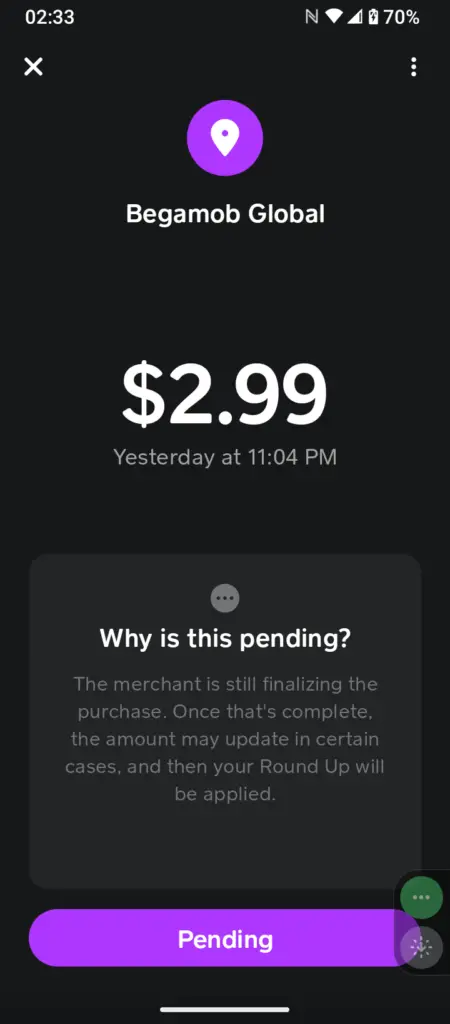
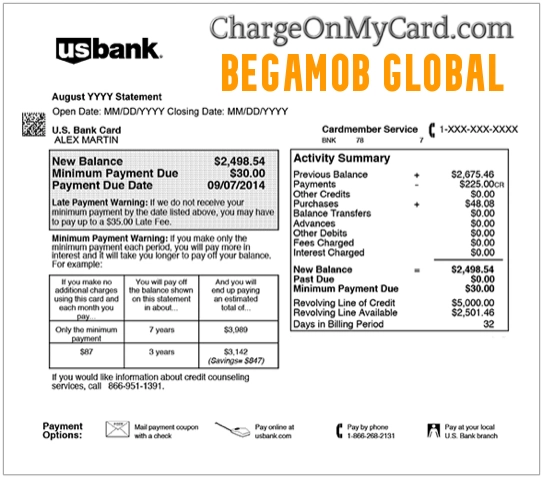
A Begamob Global charge on your credit card, debit card, PayPal account, or bank statement is most likely connected to an app, in-app purchase, trial, or subscription offered by the mobile-app developer Begamob.
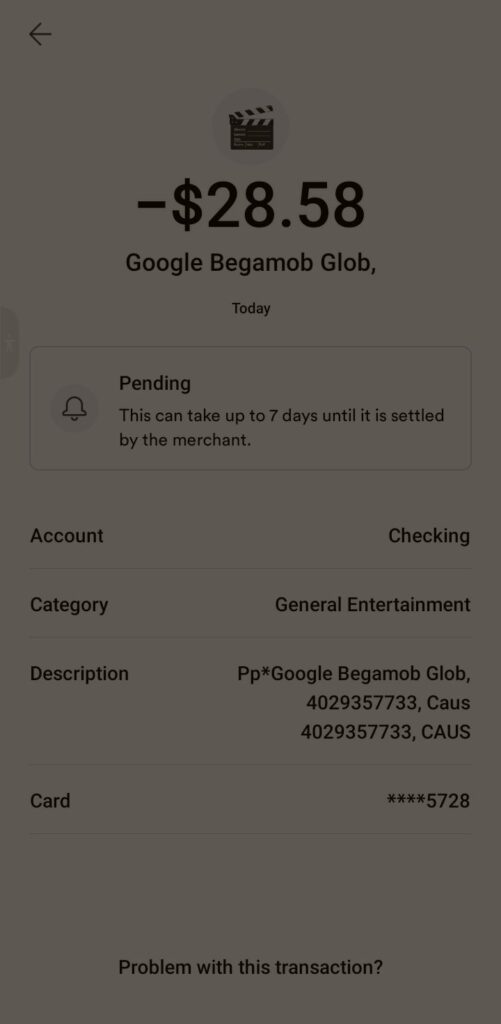
The transaction may appear as GOOGLE*BEGAMOB GLOBAL, GOOGLE BEGAMOB GLOBAL, BEGAMOB GLOBAL, or a PayPal-funded variation such as PP*GOOGLE BEGAMOB GLOB. The descriptor identifies the developer but may not show the exact app, feature, Google Account, Apple Account, subscription, or person who authorized the purchase.
What Is the Begamob Global Charge?
Begamob Global is an active mobile-app developer. Its applications are available through Google Play and the Apple App Store.
A Begamob Global transaction may involve:
- A Google Play app subscription
- An Apple App Store subscription
- An in-app purchase
- A premium app upgrade
- An advertising-free version
- A weekly, monthly, or annual membership
- A free or discounted trial that converted to paid billing
- A one-time app feature or credit package
- A purchase made through another Google or Apple account
- A purchase made by a family member or other authorized card user
- A Google Play purchase funded through PayPal
- An unauthorized app-store transaction
The charge amount alone may not identify the app because Begamob publishes many different products and subscription options can vary by app, country, platform, promotion, and billing period.
What Is Google Begamob Global?
A descriptor beginning with GOOGLE normally means that Google Play processed the purchase.
Google Play may display app transactions using:
- The app developer’s name
- The app’s name
- A shortened version of the developer or app name
- A Google content category
Therefore, GOOGLE*BEGAMOB GLOBAL or GOOGLE BEGAMOB GLOBAL most likely indicates that Google Play billed the card for an app published by the Begamob developer account.
The exact app should appear in:
- Google Play order history
- Google Play subscriptions
- Google payment activity
- The Google Play receipt email
Is Begamob Global Legitimate?
Yes. Begamob is an identifiable app developer with active applications on Google Play and Apple’s App Store.
Google Play currently identifies the developer as:
iKame Applications – Begamob Global
Apple currently identifies its related developer account as:
BEGAMOB GLOBAL LIMITED
A legitimate developer identity does not prove that every specific transaction was authorized. A card may still have been:
- Used by a family member
- Saved in another Google Account
- Saved in another Apple Account
- Used for a trial that later renewed
- Used through PayPal
- Used without the cardholder’s permission
Verify the exact app, account, subscription, and transaction before treating the payment as legitimate or fraudulent.
What Apps Does Begamob Publish?
Begamob publishes many utility, productivity, AI, media, health, and device-management apps.
Current or recent app categories include:
- Phone and storage cleaners
- Word, PDF, spreadsheet, and document readers
- PDF converters and scanners
- Screen mirroring and television casting
- Smart television remote controls
- Printer and scanning tools
- AI search and chat tools
- Translation apps
- Authenticator and two-factor authentication apps
- Heart-rate and health-monitoring tools
- Interior-design and AI image tools
- Device-tracking and file-transfer tools
- Audio recording and editing apps
- Short-drama and entertainment apps
Possible app names include:
- AI Cleaner
- Word Document
- PDF Reader – PDF Converter
- Cast to TV & Screen Mirroring
- Cast for Chromecast & TV Cast
- Printer: Smart Print App
- TV Remote Control for Smart TV
- OneSearch
- iCardiac
- Authenticator App
- SnapHome
- DramaOn
- Find My Phone
- iTransfer
- iRecorder
The available apps and names can change. Check the app-store receipt rather than assuming the charge came from one particular app.
Common Begamob Global Statement Variations
Possible wording includes:
- BEGAMOB GLOBAL
- BEGAMOB GLOBAL LIMITED
- BEGAMOB GLOBAL PTE LTD
- GOOGLE*BEGAMOB GLOBAL
- GOOGLE BEGAMOB GLOBAL
- GOOGLE*BEGAMOB GLOB
- GOOGLE BEGAMOB
- PP*GOOGLE BEGAMOB GLOB
- PAYPAL *GOOGLE BEGAMOB
- PENDING GOOGLE BEGAMOB
- RECURRING BEGAMOB GLOBAL
- APPLE.COM/BILL
An Apple-billed Begamob purchase will generally display Apple-related wording rather than the Begamob developer name directly. Confirm it through Apple purchase history.
Why Is Begamob Global Charging Me?
You Subscribed to a Begamob App
One of the developer’s apps may offer premium tools through an automatically renewing subscription.
Premium features may involve:
- Removing advertisements
- Unlocking document or PDF tools
- Accessing AI features
- Unlimited scans, conversions, or exports
- Premium casting or television controls
- Additional health or device information
- Cloud, storage, or synchronization features
- Weekly, monthly, or annual access
The app-store subscription record should show the exact app, price, billing frequency, and next renewal date.
A Trial Converted to Paid Billing
An app may offer an introductory or free trial before beginning regular subscription billing.
Review the original signup screen or receipt for:
- The trial length
- The trial expiration date
- The regular price
- The billing frequency
- The renewal date
- The account that accepted the offer
Deleting or no longer using the app does not cancel the subscription.
You Made an In-App Purchase
The charge may be for a one-time feature rather than a recurring subscription.
Possible purchases include:
- A lifetime or permanent upgrade
- A package of AI credits
- Premium templates
- Additional conversions or exports
- An advertising-free upgrade
- A specialized tool or feature
Check whether the order appears under subscriptions or only in purchase history.
Another Google Account Was Used
The card may be connected to:
- A second personal Google Account
- A work Google Account
- A child’s or family member’s account
- An old Android device
- A tablet, television, or shared device
Switch between every Google Account when reviewing subscriptions and order history.
Another Apple Account Was Used
If the purchase came through Apple, check:
- Every Apple Account used on the device
- Family Sharing purchases
- Subscriptions on an old iPhone or iPad
- Apple receipt emails
- Apple’s Report a Problem purchase list
A Family Member Made the Purchase
The purchase may have been made by:
- A spouse or partner
- A child
- Another family member
- An employee
- Another authorized cardholder
- Someone using a shared phone or tablet
Ask authorized users before reporting the transaction as unauthorized.
How to Identify a Begamob Global Charge
1. Copy the Complete Statement Descriptor
Record:
- The complete wording
- The amount
- The currency
- The transaction date
- The posting date
- Whether it is pending or completed
- Whether it is marked recurring
- Any telephone number
- Whether Google, Apple, PayPal, or another processor appears
Do not post private transaction references or card information publicly.
2. Check Google Play Order History
Open Google Play order history using the Google Account most likely connected with the card.
Compare:
- The exact amount
- The purchase date
- The app name
- The developer name
- The payment method
- The Google order number
Repeat this check for every Google Account used by you or other authorized users.
3. Review Google Play Subscriptions
Open Google Play subscriptions.
Look for:
- A Begamob app
- An app from iKame Applications – Begamob Global
- The current subscription price
- The next billing date
- The billing period
- A canceled subscription that remains active through its paid period
If the subscription is missing, switch to another Google Account.
4. Search Your Email
Search every email account for:
- Begamob
- Begamob Global
- iKame Applications
- Google Play receipt
- Apple receipt
- Subscription
- Trial
- Renewal
- The exact amount
- The app names listed above
Check spam, trash, archived messages, and old accounts.
5. Check Apple Purchase History
If Apple may have processed the purchase, review:
- Settings > Apple Account > Subscriptions
- Apple purchase history
- Apple receipt emails
- Family Sharing purchases
- Apple Report a Problem
A purchase from a Begamob iPhone app may appear as Apple billing rather than Begamob Global.
6. Check PayPal
If the statement includes PP*, PAYPAL, or 402-935-7733, review:
- PayPal Activity
- The merchant or Google payment information
- The PayPal funding card or bank account
- Automatic Payments
- The transaction date and amount
A PayPal-funded Google Play purchase may need to be canceled in Google Play even though PayPal funded the payment.
How to Cancel a Begamob Global Subscription
The correct cancellation route depends on which store processed the subscription.
Cancel Through Google Play
- Open Google Play using the correct Google Account.
- Select the profile icon.
- Select Payments & subscriptions.
- Select Subscriptions.
- Select the Begamob app.
- Select Cancel subscription.
- Follow every confirmation step.
- Save the expiration or cancellation confirmation.
You can also use Google’s official subscription-cancellation instructions.
Uninstalling the app does not cancel its Google Play subscription.
Cancel Through Apple
- Open Settings on the iPhone or iPad.
- Select the Apple Account name.
- Select Subscriptions.
- Select the Begamob app.
- Select Cancel Subscription.
- Save the expiration confirmation.
Use Apple’s official subscription-cancellation guide when needed.
Cancel a PayPal Billing Agreement
If PayPal shows a separate automatic-payment agreement:
- Sign in to PayPal.
- Open Settings.
- Open Payments.
- Select Automatic Payments.
- Select the matching Google or merchant agreement.
- Cancel the automatic-payment authorization when appropriate.
Also cancel the actual app subscription through Google Play or Apple. Canceling only PayPal funding may not cancel the subscription agreement.
Can I Get a Refund for a Begamob Global Charge?
Refund eligibility normally depends on the app store that processed the purchase.
Google Play Refund Request
To request a Google Play refund:
- Open Google Play order history.
- Find the matching Begamob app purchase.
- Select Report a problem.
- Select the option that best describes the issue.
- State that you are requesting a refund.
- Submit the request.
- Save the confirmation.
Use Google’s official refund instructions.
Canceling a subscription and requesting a refund are separate actions.
Apple Refund Request
For an Apple-billed purchase:
- Open Apple Report a Problem.
- Sign in with the Apple Account that made the purchase.
- Select Request a refund.
- Select the reason.
- Select the app or subscription.
- Submit the request.
Apple determines refund eligibility.
Contact Begamob
Begamob may be able to help identify the app or provide app-specific support, but Google or Apple may control the billing and refund decision.
Published developer emails include:
Include:
- The app name
- The platform
- The transaction date
- The amount and currency
- The non-sensitive Google or Apple order reference
- A description of the billing problem
Do not email a complete card number, password, PIN, CVV code, PayPal password, or authentication code.
Why Did Begamob Charge Me After I Canceled?
A later payment may involve:
- The subscription was canceled after renewal occurred
- The cancellation was completed on the wrong Google Account
- The cancellation was completed on the wrong Apple Account
- A second Begamob app subscription exists
- A different app from the same developer renewed
- A one-time in-app purchase was made
- A pending transaction later posted
- A payment retry occurred
- The cancellation process did not finish
- The card was used without permission
Compare the renewal date, cancellation date, app name, store account, and transaction date.
Why Are There Several Begamob Global Charges?
Multiple entries may represent:
- More than one Begamob app
- A subscription and an in-app purchase
- Several Google Accounts
- Several Apple Accounts
- A family member’s purchase
- A trial payment followed by regular billing
- A weekly subscription
- A pending authorization and completed transaction
- A refund next to the original charge
- Duplicate processing
- Repeated unauthorized transactions
Look up each amount separately in Google Play, Apple, and PayPal.
Current Begamob Contact Information
- Official website: Begamob
- Contact page: Begamob Contact
- Email: info@begamob.com
- App-support email used by some products: feedback@begamob.com
- Published website phone: 0985 369 578
- Google Play developer: iKame Applications – Begamob Global
- Apple developer: BEGAMOB GLOBAL LIMITED
Published Locations
Begamob’s website currently displays:
34 Hoàng Cầu
Đống Đa, Hanoi
Vietnam
It also publishes:
Unit 308, 3/F, Chevalier House
45–51 Chatham Road South
Tsim Sha Tsui, Kowloon
Hong Kong
These locations are not the recommended first route for canceling an app-store subscription. Use Google Play or Apple subscription settings.
What If I Never Downloaded a Begamob App?
If neither you nor another authorized user recognizes the payment:
- Confirm whether the charge is pending or completed.
- Copy the complete descriptor.
- Review every Google Play order history.
- Review every Google Play subscription list.
- Review every Apple Account and Family Sharing purchase.
- Search all email accounts for Google, Apple, Begamob, and the exact amount.
- Check PayPal if PP*, PAYPAL, or 402-935-7733 appears.
- Ask family members and other authorized card users.
- Report an unrecognized Google Play purchase through Google’s official process.
- Lock the card if additional unfamiliar charges are appearing.
- Contact the card issuer using the number printed on the card.
- Ask whether the payment method should be replaced.
Google currently provides an official unauthorized-charge form for qualifying Google Play transactions. Report suspicious transactions promptly.
How to Report an Unauthorized Google Begamob Charge
Use Google’s official unrecognized-charge instructions.
Google generally instructs users to:
- Confirm that the descriptor matches Google Play formatting.
- Check Google Play order history.
- Ask family members and other account users.
- Submit a separate claim for each affected payment method.
- Contact the card, bank, or PayPal fraud department when appropriate.
Google advises reporting unauthorized Google Play transactions within its applicable reporting period. Do not delay contacting the issuer when the card itself may be compromised.
What Does 402-935-7733 Mean With Begamob?
The telephone number 402-935-7733 is associated with PayPal.
A descriptor such as:
PP*GOOGLE BEGAMOB GLOB 4029357733
may indicate:
- A Google Play Begamob purchase
- Funded through PayPal
- Using a card or bank account connected to PayPal
Check both Google Play order history and PayPal Activity.
For more information, see:
402-935-7733 PayPal Charge on a Card or Bank Statement.
Watch Out for Fake Begamob or Google Support
Use only the official Begamob website, Google Play, Apple, PayPal, and your card issuer.
Never provide an unverified person with:
- Your complete card number
- Your Google password
- Your Apple Account password
- Your PayPal password
- Your PIN or CVV code
- A one-time authentication code
- Remote access to your device
- Gift-card numbers
- Cryptocurrency
- A second payment to release a refund
Do not call an unrelated phone number merely because it appeared in a search result.
Credit Card and Debit Card Dispute Guidance
- CFPB credit-card dispute guidance
- FTC credit-card billing guidance
- CFPB debit-card and bank-transaction guidance
App-store cancellation, merchant refunds, PayPal claims, and card disputes are separate processes. Keep records of each action.
Consumer Reports and Experiences
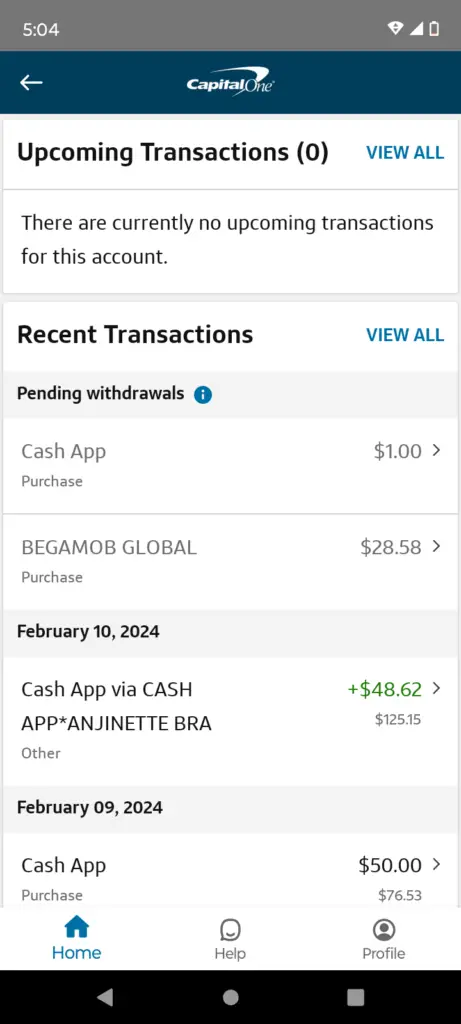
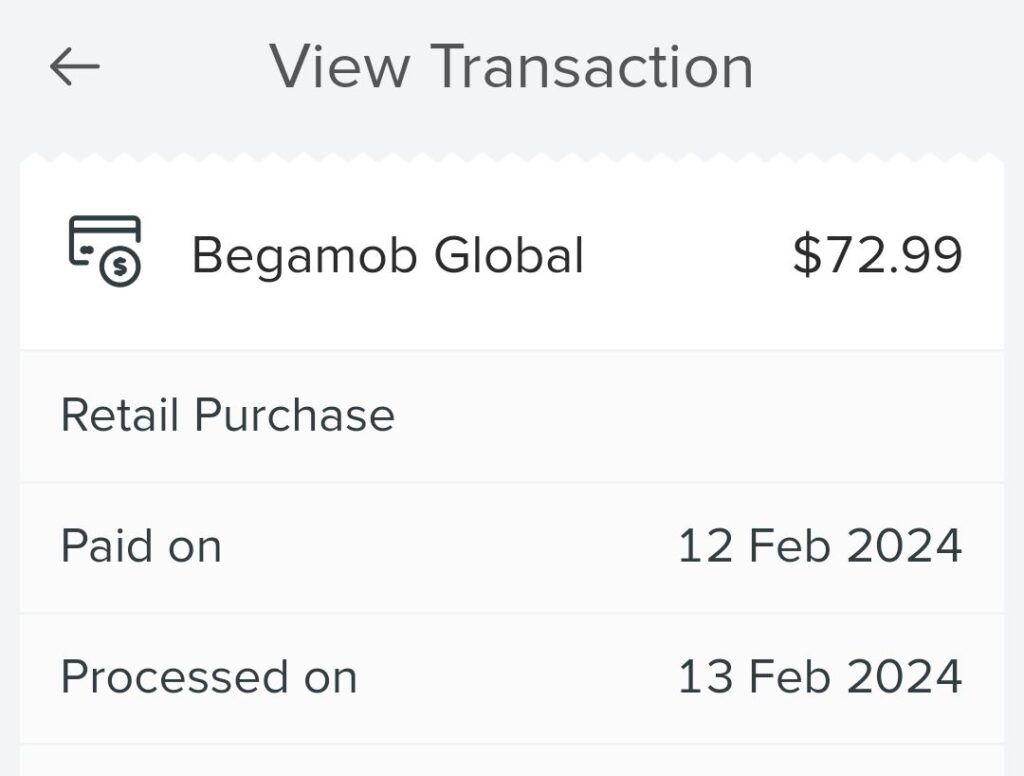
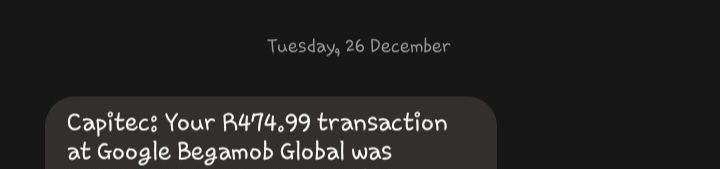
There are currently ten visible consumer reports on this ChargeOnMyCard.com page.
Reported amounts include approximately:
- $2.99
- $6.99
- $18.18
- $28.57
- $28.58
- $28.95
- $30.73
- $44.99
- $72.99
- R474.99
Several reports specifically mention:
- Google Begamob Global
- PP*Google Begamob Glob
- The PayPal-related number 402-935-7733
- Charges appearing through Cash App-funded cards
- Transactions the cardholder did not initially recognize
No visible report identifies:
- The exact Begamob app
- The subscription frequency
- The original trial terms
- A successful cancellation
- A developer-approved refund
- A Google or Apple refund decision
- A completed card-dispute outcome
ChargeOnMyCard.com cannot access Begamob, Google, Apple, PayPal, Cash App, app, subscription, card, or bank accounts. It cannot identify a private transaction, cancel a subscription, issue a refund, or submit a dispute.
Frequently Asked Questions About Begamob Global Charges
What is Begamob Global?
Begamob Global is a mobile-app developer that publishes utility, productivity, AI, media, health, security, and device-management apps through Google Play and Apple’s App Store.
What is a Begamob Global charge?
It is most likely an app purchase, in-app purchase, trial conversion, or subscription from one of Begamob’s apps.
What is Google Begamob Global?
It normally means Google Play processed a purchase from an app published under the Begamob developer account.
What app caused the charge?
Check Google Play order history, Google Play subscriptions, Apple purchase history, receipts, and every account that may use the card.
Is Begamob Global legitimate?
Yes, Begamob is an identifiable app developer. A specific charge must still be verified as authorized.
Why is Begamob charging me every week or month?
An app subscription may be renewing automatically. Open Google Play or Apple subscriptions and check every relevant account.
How do I cancel Begamob Global?
Cancel the exact app through Google Play subscriptions or Apple Account subscriptions. Do not rely on deleting the app.
Does uninstalling the app stop the charge?
No. Google and Apple subscriptions must be canceled through the applicable subscription settings.
Can I get a refund?
Request a refund through Google Play or Apple if that store processed the purchase. Begamob may provide app support, but the app store may control the payment decision.
What does PP*Google Begamob Glob mean?
It may be a Google Play Begamob purchase funded through PayPal.
What is 402-935-7733?
It is a telephone number associated with PayPal and may appear when PayPal funded or processed a payment.
Why are there multiple Begamob charges?
There may be several apps, several subscriptions, multiple store accounts, a trial and renewal, in-app purchases, duplicate processing, or unauthorized activity.
What should I do if I never installed a Begamob app?
Check every Google, Apple, PayPal, and household account, then report the purchase to the applicable app store and card issuer if it remains unauthorized.
Related App-Store and Payment Guides
- Google billing charge
- 1 Infinite Loop CA Apple and App Store Charge
- 402-935-7733 PayPal Charge
- 2CO.com and 2Checkout Charge
- Google SVCSAPPS Charge
- How to Investigate an Unrecognized Charge
Use the Google guide when the descriptor begins with Google, the Apple guide when Apple billed the purchase, and the PayPal guide when PP*, PAYPAL, or 402-935-7733 appears.
Help Other Cardholders Identify Begamob Global
If you saw BEGAMOB GLOBAL, GOOGLE*BEGAMOB GLOBAL, PP*GOOGLE BEGAMOB GLOB, or another variation, share what the payment involved.
Helpful details include:
- The complete descriptor without private reference numbers
- The general amount and currency
- The app name
- Whether Google, Apple, or PayPal processed it
- Whether it was an app purchase or subscription
- The weekly, monthly, or annual billing frequency
- How cancellation or refund support responded
- How the app store or issuer resolved the transaction
Do not post card numbers, bank-account numbers, Google or Apple email addresses, passwords, app-store order numbers, PayPal transaction IDs, PINs, CVV codes, or authentication codes.
Why Rely on ChargeOnMyCard.com?
ChargeOnMyCard.com researches confusing credit-card, debit-card, Google Play, Apple, PayPal, app, subscription, trial, developer, and bank-statement descriptors using current official resources, transaction formats, cancellation procedures, refund information, and visible consumer reports.
We distinguish Begamob’s verified role as an app developer from unconfirmed explanations for an individual transaction. Readers should verify their specific purchase through Google Play, Apple, PayPal, Begamob, and the financial institution where the charge appeared.
Last reviewed: July 2026.
Disclaimer
ChargeOnMyCard.com is not affiliated with Begamob Global, Begamob Global Limited, Begamob Global Pte. Ltd., iKame Applications, Google, Google Play, Apple, the App Store, PayPal, Cash App, any Begamob app, payment processor, card network, bank, credit union, or financial institution. This article is provided for informational purposes only and is not financial, legal, banking, app, subscription, cancellation, refund, dispute, privacy, account-security, or fraud advice. Contact the applicable app store, developer, payment provider, and financial institution directly regarding a specific transaction.