
An AppFolio charge on your credit card, debit card, or bank statement usually relates to a payment made through a property manager’s AppFolio Online Portal. It may represent rent, HOA dues, another property-related balance, or a separate online-payment fee.
Quick answer: AppFolio says credit and debit card payments normally appear as AF* followed by the property-management company’s name. An applicable transaction fee may appear separately as APPFOLIO_TXNFEE. An eCheck payment generally displays the property-management company’s name rather than AppFolio.
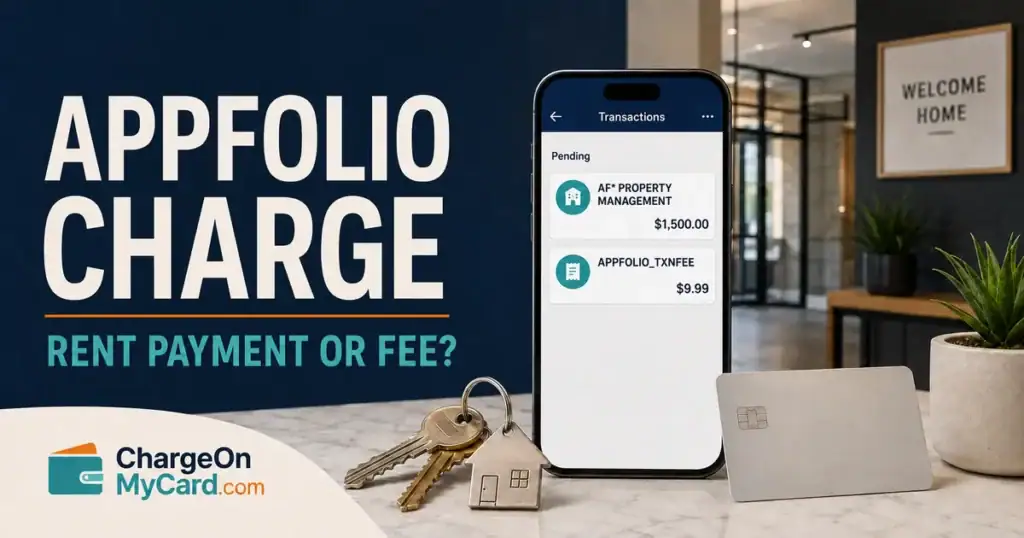
What Is the AppFolio Charge?
AppFolio is an online platform used by property managers, landlords, community associations, residents, homeowners, and real-estate operators. Its resident portal can be used to view account charges, make payments, establish AutoPay, review payment history, and access lease or property documents.
A charge associated with AppFolio may therefore represent:
- A monthly rent payment
- A one-time rent or property payment
- An HOA or community-association payment
- A security deposit or move-in balance entered by the property manager
- A utility, parking, storage, pet, maintenance, or other property-related charge shown in the resident ledger
- An automatic payment from a resident or homeowner account
- A payment submitted by a spouse, roommate, employee, or other authorized user
- A separately billed online transaction fee
- An incorrect, duplicated, or unauthorized payment
The statement descriptor alone does not identify the property, unit, lease, resident, management company, or exact charge being paid. Check the account ledger and payment receipt for those details.
How AppFolio Payments Appear on Statements
AppFolio’s official Resident Portal guidance identifies the following statement formats:
- Credit or debit card: AF* [your property-management company]
- Online transaction fee: APPFOLIO_TXNFEE
- eCheck: The property-management company’s name
Banks may remove punctuation, change capitalization, or shorten longer merchant names. For example, the asterisk after AF may be omitted. Compare the complete description with the name of your landlord, leasing office, HOA, or property-management company.
What Does APPFOLIO_TXNFEE Mean?
APPFOLIO_TXNFEE identifies an online payment transaction fee associated with an AppFolio portal payment.
The fee may post separately from the underlying rent or property payment. This can result in two entries:
- AF* followed by the property-management company for the primary payment
- APPFOLIO_TXNFEE for the related processing fee
AppFolio states that transaction fees apply to online payments and that the applicable amount is displayed before the payment is submitted. AppFolio does not publish one universal resident fee on its general help page, so use the amount displayed in your portal rather than relying on an amount reported for a different property.
If you recognize the property payment but not the additional fee, check the confirmation email and payment screen. Ask your property manager which payment methods are available and whether any method has a different fee.
Why Are There Two AppFolio Charges?
Two AppFolio-related entries do not automatically indicate duplicate billing. They may represent:
- The property payment and a separate APPFOLIO_TXNFEE
- Two different balances paid through the portal
- Payments for two properties or units
- A manual payment submitted near an automatic payment
- Payments created by different roommates or account users
- A pending authorization followed by the completed transaction
- A failed payment followed by a successful retry
- A genuine duplicate or unauthorized transaction
Wait for pending entries to settle before treating them as completed duplicates. If two completed payments remain, compare each one with the portal ledger and confirmation emails.
How to Verify an AppFolio Charge
- Record the complete descriptor, amount, date, and whether the entry is pending or posted.
- Look for a property-management company’s name after AF*.
- Access your resident portal through a saved bookmark or a link previously supplied by your property manager.
- Open the Payments tab and select the option to view the full account ledger.
- Compare the statement amount with your rent, HOA dues, property balance, and scheduled payments.
- Search your email for an AppFolio payment confirmation and the exact amount.
- Review AutoPay settings for your current and former rental properties.
- Ask a spouse, roommate, family member, employee, or other authorized user.
- Contact the property manager and request a receipt or explanation of the ledger entry.
- Ask your bank for the complete merchant information if the transaction still cannot be identified.
AppFolio’s official contact page directs residents and homeowners with portal or billing questions to their property manager.
How to Stop AppFolio AutoPay
To stop a future automatic payment:
- Sign in to the correct Online Portal.
- Open the Payments tab.
- Find the Scheduled Payments section.
- Select Delete under the automatic payment you created.
- Save or photograph the confirmation for your records.
AppFolio notes that you cannot delete an automatic payment created by a roommate. The person who created it may need to sign in and remove it.
You may also be able to edit the amount or payment method. Changing between a credit or debit card and an eCheck may require deleting the existing automatic payment and creating a new one.
Deleting AutoPay does not eliminate rent, HOA dues, or another amount that remains legally due. Confirm the replacement payment arrangement with your property manager to avoid a late fee, returned-payment fee, or unpaid balance.
Can an AppFolio Payment Be Canceled or Refunded?
If a payment has not processed, check the Scheduled Payments section for an option to delete or skip it.
AppFolio says that once a payment has processed and a confirmation email has been issued, the resident should contact the bank or card provider regarding a stop payment. You should also contact the property manager immediately because stopping a legitimate property payment may leave an unpaid balance.
For an incorrect amount, duplicate payment, canceled lease, or disputed property charge, ask the property manager to:
- Identify the ledger item the payment covered
- Confirm whether the payment settled
- Explain any separate transaction fee
- Correct an incorrect property balance
- Confirm whether a refund or account credit is available
- Provide the expected refund or reversal timeframe in writing
Refund rights depend on the payment, lease, property-management policies, and applicable law. Do not assume the transaction fee will be refunded merely because the underlying property payment is adjusted.
What If the AppFolio Charge Is Unauthorized?
AppFolio is a legitimate property-management software company, but that does not prove that every transaction using an AppFolio-related descriptor was authorized by the cardholder.
If neither you nor another authorized person recognizes the payment:
- Review every current and former property portal connected with the card or bank account.
- Contact the property-management company named in the descriptor.
- Change the portal password and enable two-factor authentication if available.
- Delete unfamiliar saved payment methods or scheduled payments.
- Contact the bank or card issuer using the number printed on the card or shown in its official app.
- Report the transaction promptly and ask whether the card or account information should be replaced.
- Preserve the statement, portal ledger, confirmation emails, and communications with the property manager.
For credit-card billing errors, the Consumer Financial Protection Bureau advises contacting the card company promptly and following the written billing-error instructions on the statement. A written notice generally must be sent within 60 calendar days after the charge appeared to preserve applicable federal billing-error rights.
For an unauthorized debit or electronic bank transaction, notify the bank immediately. Debit-card and electronic-transfer protections can depend on how quickly the transaction is reported. Review the CFPB’s unauthorized bank-transaction guidance.
Watch Out for Fake AppFolio Support Numbers
AppFolio’s official contact page directs residents to their property manager for portal and billing assistance. Be cautious of unofficial support numbers displayed in search advertisements, social-media comments, pop-ups, or unsolicited messages.
Do not provide a caller with your complete card number, bank-account number, password, PIN, Social Security number, or one-time security code. Do not install remote-access software for someone claiming they need it to issue an AppFolio refund.
Related Payment and Rental Charge Guides
- PNP BILLPAYMENT Charge: Online Payment Processor Explained
- Tyler Technologies Charge: Government Payment or Service Fee?
- ERENTERPLAN Charge: Renters Insurance Billing
Frequently Asked Questions
What is an AppFolio charge on my bank statement?
It usually represents a payment made through a property manager’s AppFolio Online Portal. It may be rent, HOA dues, another property-related balance, or a separate transaction fee.
What is APPFOLIO_TXNFEE?
APPFOLIO_TXNFEE is the statement description AppFolio identifies for an applicable online-payment transaction fee. It may appear separately from the primary property payment.
What does AF followed by a company name mean?
AppFolio says credit and debit card payments normally appear as AF* followed by the property-management company’s name. Confirm the company name and transaction through your portal ledger.
Does an AppFolio eCheck show AppFolio on the statement?
Not necessarily. AppFolio says eCheck payments generally appear under the property-management company’s name.
Why did AppFolio charge me twice?
One entry may be the property payment and the other may be APPFOLIO_TXNFEE. Other explanations include a manual payment combined with AutoPay, two properties, a payment retry, a pending authorization, or a genuine duplicate.
How do I stop AppFolio from charging me automatically?
Open the Payments tab, locate Scheduled Payments, and delete the AutoPay arrangement you created. Confirm how any remaining property balance will be paid.
Can I contact AppFolio about my rent charge?
AppFolio directs residents to their property manager for portal and billing questions. The property manager can identify the ledger entry, provide a receipt, and address the property balance.
Is an AppFolio charge fraudulent?
Not automatically. AppFolio is a legitimate property-management platform. However, a particular charge may be unauthorized if no resident portal, property, payment record, or authorized person explains it.
Consumer Reports and Experiences
Have you seen an AppFolio, APPFOLIO_TXNFEE, or AF* property-management charge? Share the exact descriptor, amount, whether it involved a card or eCheck, whether it matched rent or another property payment, and how you resolved it.
Do not post your complete card number, bank-account number, property address, apartment number, lease number, portal login, email address, phone number, password, PIN, or security code.
Disclaimer
ChargeOnMyCard.com is not affiliated with AppFolio, any property-management company, landlord, homeowners association, bank, or card issuer. This article is for informational purposes only and is not legal, financial, tenancy, banking, or fraud-prevention advice. Verify individual transactions with the property manager and financial institution involved.