
If you see a GOOGLE *SUPERCELL GOOGLE.COM/CH CA charge on your credit card, debit card, or bank statement, it is usually connected to a Google Play purchase or in-app purchase for a Supercell game. Supercell makes popular mobile games such as Clash of Clans, Clash Royale, Brawl Stars, Boom Beach, Hay Day, Squad Busters, and other games.
A Google Supercell charge is not automatically fraud. It may be a legitimate in-app purchase, game currency purchase, Supercell Store payment, child or family member purchase, Google Play transaction, saved payment method charge, or subscription-style purchase connected to a Supercell game. However, if you do not recognize the amount, game, Google account, or device, verify it quickly and contact Google, Supercell, or your card issuer if the charge is unauthorized.
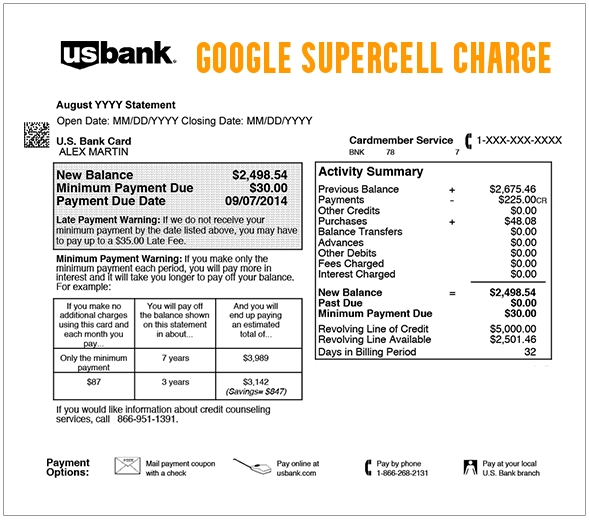
Google Supercell Charge on Credit Card: What It May Mean
GOOGLE *SUPERCELL GOOGLE.COM/CH CA is a statement descriptor that may appear when a Supercell game purchase is processed through Google Play. The charge may show “Google,” “Supercell,” “GOOGLE.COM/CH,” “g.co/helppay,” “CA,” or a Google support phone number such as 855-836-3987.
These charges often relate to in-game purchases such as gems, gold, diamonds, passes, boosts, skins, bundles, event offers, or other digital items inside Supercell games. The statement may not clearly show the game name, Google account, device, or player profile that made the purchase.
If you, a child, family member, spouse, employee, or other authorized card user plays Supercell games on Android or through Google Play, the charge may be legitimate. If no one recognizes the game or purchase, treat the charge as unverified and review your Google account, Play purchase history, family payment settings, and card activity.
Common Google Supercell Statement Descriptor Variations
Card and bank statements may shorten or combine Google, Google Play, Supercell, phone number, country, and game information. Possible descriptor variations include:
- GOOGLE *SUPERCELL GOOGLE.COM/CH CA
- GOOGLE *SUPERCELL
- GOOGLE SUPERCELL
- GOOGLE SUPERCEL
- GOOGLE SUPERCELL CHARGE
- GOOGLE SUPERCELL CHARGES
- GOOGLE *Supercell g.co/helppay
- GOOGLE *SUPERCELL 855-836-3987 CA
- GOOGLE *SUPERCELL 8558363987
- GOOGLE PLAY SUPERCELL
- GOOGLE *CLASH OF CLANS GOOGLE.COM/CH CA
- GOOGLE *CLASH ROYALE GOOGLE.COM/CH CA
- GOOGLE *BRAWL STARS GOOGLE.COM/CH CA
- GOOGLE *BOOM BEACH GOOGLE.COM/CH CA
- GOOGLE *HAY DAY GOOGLE.COM/CH CA
- GOOGLE *SQUAD BUSTERS GOOGLE.COM/CH CA
- FS SUPERCELL STORE
- FS SUPERCELL STORE CHARGE ON CREDIT CARD
- SUPERCELL ON BANK STATEMENT
- PRE-AUTH GOOGLE SUPERCELL
- PENDING GOOGLE SUPERCELL
The exact wording can vary by bank, card network, Google Play account, country, payment method, and whether the transaction is pending or posted.
Why a Google Supercell Charge May Appear
A Google Supercell or Supercell Store charge may appear for several reasons, including:
- In-app purchase: You or another user may have bought gems, gold, coins, diamonds, passes, skins, bundles, or other digital items inside a Supercell game.
- Clash of Clans purchase: The charge may relate to gems, Gold Pass, event offers, builder items, or other Clash of Clans content.
- Clash Royale purchase: The charge may relate to Pass Royale, cards, gems, chests, offers, or other Clash Royale content.
- Brawl Stars purchase: The charge may relate to Brawl Pass, gems, skins, credits, bundles, or other Brawl Stars items.
- Other Supercell game purchase: The charge may relate to Hay Day, Boom Beach, Squad Busters, mo.co, or another Supercell title.
- Supercell Store payment: Some purchases may be made through the Supercell Store rather than directly inside Google Play.
- Child or family member purchase: A child or family member using a shared device, Family Library, or saved payment method may have made the purchase.
- Saved Google payment method: A card saved in Google Play may be used for purchases from any signed-in Android device.
- Delayed posting: Google Play charges can post after the actual game purchase date.
- Unauthorized activity: If no one recognizes the charge, your Google account or card may have been used without permission.
Official Google Play and Supercell Contact Information
If the charge appears to be connected to Google Play, start with your Google account and Google Play purchase history. If it appears to be connected to a specific Supercell game, you can also contact Supercell Support from inside the game.
- Google Play Help Center: Google Play Help
- Report Google Play charges you do not recognize: Report charges you do not recognize
- Google unauthorized transaction form: Report unauthorized Google purchases
- Understand Google charges on bank statements: Google charge statement help
- Google Play phone number often seen on statements: 1-855-836-3987
- Supercell website: Supercell.com
- Supercell Support: Supercell Support Portal
- Supercell Store support: Supercell Store Support
Important: Do not share your full card number, CVV, Google password, Supercell ID login, recovery codes, or banking login with anyone in comments, chats, emails, or unofficial support pages. Use Google, Supercell, and your card issuer’s official support channels.
How to Verify a Google Supercell Charge
Use these steps to determine whether the Google Supercell charge is legitimate:
- Check Google Play purchase history. Sign in to the Google account connected to the device and review recent Google Play purchases.
- Search your email. Look for “Google Play,” “Google Supercell,” “Supercell,” “Clash of Clans,” “Clash Royale,” “Brawl Stars,” “Hay Day,” “Boom Beach,” “Squad Busters,” “receipt,” or the exact charge amount.
- Check the game account. Open the Supercell game and review recent purchases, passes, gems, bundles, or premium items.
- Ask family members. Check with children, spouses, family members, employees, or anyone else who may use the device or card.
- Review Google Family settings. If a child has access to Google Play, check purchase approvals, Family Library, and saved payment methods.
- Check whether the charge is pending. Pending charges may change, disappear, or post later as the final amount.
- Compare the game and amount. Match the charge with known Supercell purchase prices, passes, event offers, or recurring game purchases.
- Contact Google if the purchase is in Google Play. Use Google Play support or the unrecognized-charge form.
- Contact Supercell if it relates to a game or Supercell Store purchase. Use in-game support or Supercell Store support.
- Contact your card issuer if still unknown. Ask whether the charge was online, in-app, recurring, or unauthorized.
How to Stop Google Supercell Charges
If you want to stop Google Supercell charges, first determine whether the charge is coming from Google Play, a Supercell game, the Supercell Store, or unauthorized card use.
- Remove or update saved payment methods: Review payment methods in your Google account and remove cards that should not be used for game purchases.
- Turn on purchase approval: Use Google Play purchase verification or family approval settings for children and shared devices.
- Check subscriptions and passes: Look for any active game passes, recurring purchases, or Google Play subscriptions.
- Secure your Google account: Change your password and review signed-in devices if you suspect account access by someone else.
- Secure Supercell ID: Review account access and support options if your game account may be compromised.
- Contact Google or Supercell: Use official support routes for refunds, purchase issues, and account problems.
- Contact your card issuer: If you cannot identify the purchase or stop future charges, ask about disputes, merchant blocks, or card replacement.
Simply deleting a game may not remove a saved Google payment method or stop someone else from making purchases on another signed-in device.
Refunds for Google Supercell and Supercell Store Purchases
Refund options depend on how the purchase was made. If the purchase was made through Google Play, start with Google Play purchase history and Google Play refund tools. If the purchase was made through the Supercell Store, use Supercell Store support. If the purchase appears inside a Supercell game, Supercell says players can contact support through the in-game Settings area.
Before requesting a refund, gather the transaction date, amount, Google account email, game name, player tag if available, order number, receipt, and reason for the refund request. Keep screenshots of any refund request, support ticket, or cancellation confirmation.
Note: Refunds of in-game purchases can sometimes affect game progress, account balances, or purchased items. Review Google and Supercell support guidance before submitting refund requests.
Is Google Supercell Fraud?
A Google Supercell charge is not automatically fraud. It is often a legitimate Google Play or Supercell game purchase that appears under a shortened statement descriptor. This is especially common if a child, family member, or another authorized user plays Supercell games on a device with a saved payment method.
However, if you did not authorize the charge, cannot find it in any Google account, do not recognize the game, and no authorized user knows about it, treat it as suspicious. Contact Google if it appears tied to a Google account, and contact your card issuer if the card itself may have been used without permission.
What To Do If the Google Supercell Charge Is Unauthorized
If the Google Supercell charge is not yours, act quickly:
- Lock your card through your bank app if unauthorized use is possible.
- Check Google Play order history for every Google account used on your devices.
- Review family and child accounts for purchases made with a shared payment method.
- Use Google’s unauthorized transaction form if the purchase was not made by you or someone you know.
- Contact your card issuer using the number on the back of your card if the charge does not appear in any Google account you control.
- Ask whether the charge is pending or posted. Some banks handle pending and posted transactions differently.
- Request the full merchant details. Ask your issuer for the merchant category, transaction type, and registered descriptor.
- Dispute the charge if appropriate. If it was unauthorized, ask about the correct fraud-reporting or dispute process.
- Request a new card if needed. If your card number may be compromised, your issuer may recommend replacing it.
- Keep records. Save Google receipts, Google case numbers, Supercell support tickets, bank dispute numbers, screenshots, and call dates.
Google Supercell Debit Card Charge vs. Credit Card Charge
If the Google Supercell charge appears on a debit card, the money may already have left your checking account. Contact your bank quickly if the charge is unauthorized or if you cannot identify the Google account or game purchase.
If the charge appears on a credit card, contact your credit card issuer and ask about billing dispute rights, documentation, and deadlines. Keep copies of Google Play receipts, Supercell support messages, and any written dispute you file.
Frequently Asked Questions About Google Supercell Charges
What is Google Supercell on my credit card?
Google Supercell on a credit card is usually a Google Play charge for an in-app purchase or digital item in a Supercell game such as Clash of Clans, Clash Royale, Brawl Stars, Hay Day, Boom Beach, or Squad Busters.
What does GOOGLE *SUPERCELL GOOGLE.COM/CH CA mean?
GOOGLE *SUPERCELL GOOGLE.COM/CH CA is a Google-style statement descriptor that may appear when a Supercell game purchase is processed through Google Play. The “CA” portion may appear as part of Google’s billing descriptor and does not necessarily mean the game company is located in California.
Why does the charge show 855-836-3987?
Some Google or Google Play statement descriptors show the phone number 855-836-3987. Treat it as a Google/Google Play statement clue, but use Google’s official Help Center, Google Play purchase history, and your card issuer for account-specific verification.
How do I stop Google Supercell charges?
Check Google Play purchase history, remove saved payment methods if needed, turn on purchase approval for children or shared devices, secure your Google account, and contact Google or Supercell support. If the charges are unauthorized, contact your card issuer.
Can a child make Google Supercell purchases?
Yes. If a child or family member uses a device with a saved Google payment method, they may be able to make in-app purchases unless purchase approval, authentication, or family controls are enabled.
What is FS Supercell Store charge on credit card?
FS Supercell Store may relate to a purchase made through the Supercell Store rather than through Google Play. Check Supercell Store receipts, game account activity, and your email for matching purchase confirmations.
Is Google Supercell a subscription?
Many Supercell charges are one-time in-app purchases, but some game passes, premium features, or Google Play-related purchases may renew or repeat. Check Google Play subscriptions, game account settings, and prior statements.
Should I dispute a Google Supercell charge?
Do not dispute it automatically if it may match a real game purchase, child purchase, family purchase, or authorized-user transaction. First check Google Play receipts, game history, family accounts, and authorized users. If you still cannot identify it, contact your card issuer and ask about dispute options.
Can Supercell refund a Google Play purchase?
Refund handling depends on how the purchase was made. Start with Google Play if the charge appears in Google Play purchase history, and use Supercell Support or in-game support for Supercell game or Supercell Store purchase questions.
Related Charge Guides
Other Google, app, digital purchase, subscription, and online payment descriptor guides that may help when comparing unfamiliar charges:
- 1600 Amphitheatre Pkwy G.co Payhelp CA Charge
- Google YouTube billing charge
- EverAI Charge on Credit Card
- W8TECH SA Charge on Credit Card
- SPStore Gold Charge on Credit Card
- F1NC US Charge on Credit Card
Share Your Experience With a Google Supercell Charge
Have you seen a GOOGLE *SUPERCELL GOOGLE.COM/CH CA, Google Supercell, Google Supercell 855-836-3987, FS Supercell Store, Clash of Clans, Clash Royale, Brawl Stars, or similar charge on your credit card, debit card, Google Play account, or bank statement? Share the exact descriptor, amount range, whether it was pending or posted, and whether it matched a Supercell game, child purchase, Google Play purchase, Supercell Store order, or unauthorized transaction.
Privacy warning: Do not post your full card number, bank account number, CVV, Google login, Supercell ID login, player tag, password, email address, phone number, home address, order number, or banking details in a public comment.
Why Trust ChargeOnMyCard.com?
ChargeOnMyCard.com helps consumers research confusing credit card, debit card, PayPal, Cash App, Venmo, Zelle, Google Play, app-store, and bank statement descriptors. We review available merchant information, official support resources, public charge patterns, statement wording, and consumer-safety guidance to help readers understand what a charge may be and how to verify it safely.
Disclaimer
ChargeOnMyCard.com is an independent consumer information website and is not affiliated with Google, Google Play, Supercell, Clash of Clans, Clash Royale, Brawl Stars, Hay Day, Boom Beach, Squad Busters, any app store, payment processor, bank, or card issuer. This page is for educational purposes only. Always verify charges directly with Google, Supercell, the merchant if safely identifiable, your bank, or your credit card issuer before taking action.