
An AWS EMEA charge on your credit card, debit card, or bank statement most likely comes from Amazon Web Services billing through Amazon Web Services EMEA SARL, also known as AWS Europe.
The transaction may cover cloud-computing usage, data storage, a server, an AWS Marketplace product, a support plan, a domain, taxes, or another AWS service. Check the statement for a nine-digit invoice number and compare it with every AWS account connected to the payment card.
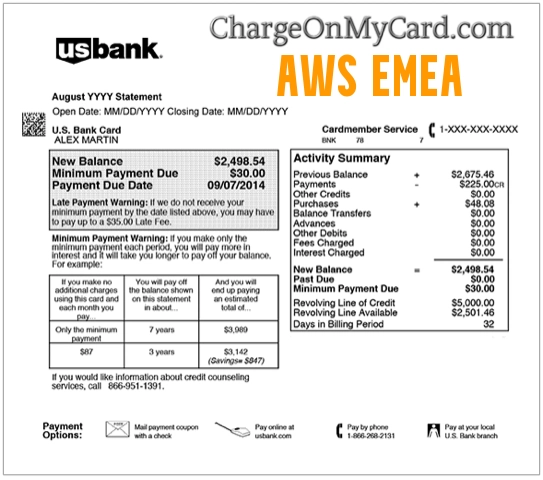
What Is the AWS EMEA Charge on a Credit Card?
An AWS EMEA charge on a credit card usually represents payment for Amazon Web Services supplied or invoiced through Amazon Web Services EMEA SARL.
Possible explanations include:
- An Amazon EC2 virtual server or related computing resource
- Amazon S3 data storage or transfer
- An Amazon EBS volume or snapshot
- An Amazon RDS database
- A domain name or hosted zone through Route 53
- An AWS Marketplace software or data subscription
- An AWS support plan
- A Reserved Instance or Savings Plan commitment
- Usage exceeding AWS Free Tier limits or available credits
- A resource left active in another AWS Region
- A linked account in AWS Organizations
- A final invoice after an AWS account was closed
- A temporary card-verification authorization
- An AWS account or payment method used without authorization
The statement descriptor alone does not identify the AWS account, service, Region, resource, user, project, or Marketplace product responsible for the total.
What Does AWS EMEA Mean?
AWS means Amazon Web Services. EMEA means Europe, the Middle East, and Africa.
Amazon Web Services EMEA SARL is the AWS legal entity commonly referred to as AWS Europe. It provides invoicing and payment services for qualifying AWS accounts based in EMEA countries and territories.
The AWS seller assigned to an account can depend on account information such as its tax address, tax registration details, billing address, contact address, and payment information.
An AWS EMEA statement charge therefore does not necessarily mean that:
- The cardholder lives in Europe
- The payment was made at an AWS event
- The service was physically used in Luxembourg
- The resource was located in an EMEA AWS Region
- The charge involved a normal Amazon retail purchase
Is AWS EMEA an AWS Summit Charge?
Usually not. AWS EMEA ordinarily identifies the Amazon Web Services legal entity that issued the bill or processed the payment.
A conference or event expense should have a matching event registration, receipt, attendee email, or ticket record. Do not assume that an AWS EMEA bank charge is for an AWS Summit merely because the term EMEA is also used for an AWS geographic business region.
Common AWS EMEA Statement Variations
- AWS EMEA
- AMAZON WEB SERVICES EMEA
- AMAZON WEB SERVICES EMEA SARL
- AWS EMEA SARL
- AWS EMEA SERVICE CHARGE
- AWS EMEA followed by an invoice number
- AWS followed by a nine-digit number
- AMAZON AWS EMEA
- AWS EUROPE
- POS DEBIT AWS EMEA
- CHECKCARD AWS EMEA
- PENDING AWS EMEA
The wording can vary according to the bank, card network, country, currency, AWS seller of record, transaction status, and available statement space.
What Is the Number After AWS EMEA?
AWS says its credit-card charge description includes a nine-digit invoice number. For example, a transaction may resemble:
AWS EMEA 123456789
Use that number to match the card payment with an AWS invoice:
- Copy the complete descriptor and nine-digit number.
- Sign in to each possible AWS account.
- Open Billing and Cost Management.
- Select Bills.
- Choose the month containing the transaction.
- Open the Invoices section.
- Compare the invoice number, total, currency, and payment date.
If the number is truncated by the bank, ask the card issuer for the expanded merchant description.
How to Verify an AWS EMEA Charge
- Record the full descriptor, amount, currency, transaction date, posting date, and invoice-number fragment.
- Search every email account for AWS, Amazon Web Services, invoice, billing statement, payment, Free Tier, Marketplace, or account ID.
- Check every AWS account used personally or for a business.
- Review old AWS accounts connected to former projects, websites, apps, domains, or employers.
- Ask employees, developers, agencies, contractors, and authorized cardholders.
- Open the AWS Bills page and select the relevant month.
- Review Charges by service.
- Review Charges by account when AWS Organizations is used.
- Compare the nine-digit invoice number.
- Review AWS Marketplace subscriptions.
- Check whether the card was added to a second or forgotten AWS account.
- Contact AWS Account and Billing Support when the charge still cannot be matched.
How to Review Your AWS Bill
- Sign in to the AWS Billing and Cost Management console.
- Choose Bills in the navigation menu.
- Select the billing month.
- Review the bill summary and total.
- Expand Charges by service.
- Expand each service to identify the Region, usage category, and cost.
- Review Charges by account when the account belongs to an AWS Organization.
- Open the Invoices tab and download the corresponding invoice.
- Compare the invoice with the card transaction.
The bill may include several small AWS services combined into one card charge, so the card total may not match one resource by itself.
Why Did AWS EMEA Charge Me?
Cloud Resources Were Still Running
A virtual server, database, storage service, load balancer, public address, or other resource may have remained active after a project ended.
You Exceeded Free Tier Limits
A service described as eligible for AWS Free Tier may begin generating normal usage charges when its limit, credit, or eligibility period is exceeded.
Free Tier does not necessarily mean that every AWS service, configuration, resource, or amount of usage is free.
A Resource Exists in Another AWS Region
AWS resources are distributed across multiple geographic Regions. A resource may remain active in a Region different from the one currently displayed in the console.
Check all relevant Regions rather than reviewing only the default Region.
You Stopped an EC2 Instance but Kept Its Storage
Stopping an EC2 instance may stop its computing charge, but attached EBS volumes, snapshots, addresses, or other resources may continue generating costs.
A Service Recreated the Resource
Some managed services and environments can create, restart, or maintain supporting resources. Delete the resource through the service that originally created it rather than deleting only one underlying component.
You Have an AWS Marketplace Subscription
A third-party software, data, container, machine-learning, or SaaS product purchased through AWS Marketplace may appear on the AWS bill.
A Different AWS Account Uses the Card
The card may be stored on another personal account, a company account, a developer account, a former project, or an account managed through AWS Organizations.
The Account Was Closed Recently
AWS may issue a final invoice for usage incurred before the closure date. Certain contractual commitments and Marketplace products may also need separate review.
Is a $1 AWS EMEA Charge Real?
A small charge of approximately $1 may be a temporary card authorization used when a payment card is added or verified.
Check whether the transaction is pending and whether a new card was recently added to an AWS account. Contact the card issuer if the authorization does not clear within the issuer’s normal time frame or if no AWS account explains it.
How to Find the AWS Resource Generating Charges
- Open the AWS Bills page.
- Select the relevant billing period.
- Expand Charges by service.
- Write down every service with a nonzero amount.
- Note the AWS Region listed under each service.
- Open that service’s console in the listed Region.
- Identify active resources, storage, snapshots, subscriptions, and addresses.
- Check whether another AWS service created the resource.
- Back up any data that must be retained.
- Terminate or delete resources that are no longer needed.
- Monitor the estimated bill afterward.
Avoid deleting resources that belong to an employer, customer, production website, application, backup system, or another person without authorization.
How to Stop Future AWS EMEA Charges
- Identify the exact AWS account and invoice.
- Review Charges by service and Region.
- Terminate unused computing resources.
- Delete unneeded storage volumes and snapshots.
- Release unneeded public addresses and related resources.
- Delete unused databases, load balancers, gateways, and hosted environments.
- Cancel unneeded AWS Marketplace subscriptions.
- Review active support plans, domains, Reserved Instances, and Savings Plans.
- Check every linked account in AWS Organizations.
- Create billing alerts and budgets.
- Contact AWS Billing Support about unexplained or disputed usage.
Removing a payment card does not eliminate valid charges already incurred and may not terminate the resources producing the bill.
How to Cancel an AWS Marketplace Subscription
- Open the AWS Marketplace Manage subscriptions page.
- Select the product.
- Review its delivery method and running resources.
- Terminate associated instances, jobs, endpoints, or deployments when required.
- Choose the product’s cancellation option.
- Confirm that the subscription is canceled.
- Continue monitoring the AWS bill for associated infrastructure costs.
Canceling a Marketplace agreement may not automatically terminate every AWS resource that was launched to operate the product.
How to Close an AWS Account
Close an AWS account only after reviewing its data, active resources, commitments, domains, Marketplace subscriptions, and outstanding invoices.
- Sign in as the AWS account root user.
- Back up information that must be retained.
- Review the current bill and active resources.
- Cancel applicable Marketplace subscriptions.
- Open the AWS Account page.
- Select Close account.
- Enter the AWS account ID when requested.
- Confirm the closure.
- Save the confirmation email.
You may still receive a final bill for charges incurred before closure. Reserved Instances, Savings Plans, and other commitments should be reviewed separately.
What If You Cannot Sign In to the AWS Account?
Use AWS’s account-support process rather than calling an unverified telephone number from a comment or search result.
- AWS account recovery and sign-in support: Contact AWS Account Support
- AWS billing support: Create an Account and Billing Support case
AWS does not publish a direct general billing-support number. When creating a billing case, an authenticated account owner may be offered web support or the option to request a telephone callback.
What If You Do Not Have an AWS Account?
- Search all email accounts for AWS registration and invoice messages.
- Ask household members, employees, developers, contractors, and authorized cardholders.
- Check whether the card was used to create an AWS account for a website, app, class, cloud project, or business.
- Try the AWS account-recovery process for likely email addresses.
- Ask the card issuer for the full descriptor and invoice-number information.
- Contact AWS Account Support when account ownership is uncertain.
- Contact the card issuer promptly if no authorized account explains the charge.
What If the AWS EMEA Charge Was Unauthorized?
If no authorized AWS account, invoice, resource, organization, employee, contractor, or Marketplace purchase explains the transaction:
- Contact the card issuer through the number on the card or official banking app.
- Report the completed charge as unrecognized.
- Ask whether additional AWS transactions are pending.
- Ask whether the card should be locked or replaced.
- Save the full merchant descriptor and invoice-number fragment.
- Use AWS’s account-support form if an unknown AWS account may be involved.
- Change passwords for any AWS or email account that may have been compromised.
- Enable multifactor authentication on AWS root and administrative users.
- Review access keys, users, roles, and active resources.
- Preserve AWS support and bank case numbers.
Do not email or post a complete card number, bank-account number, AWS password, access key, secret key, invoice document, security code, or one-time authentication code.
AWS Official Billing and Support Resources
- AWS Billing console: Review AWS bills and payments
- AWS Support Center: Create an account and billing case
- Account support without signing in: AWS account-support form
- AWS Europe information: Amazon Web Services EMEA SARL FAQ
- Confirm an AWS card charge: Match a charge with an AWS invoice
- Unexpected AWS charges: Find AWS resources producing costs
- Close an AWS account: Review AWS account-closure instructions
Consumer Reports and Experiences
There are currently zero visible cardholder reports on this page.
We do not yet have live visitor reports confirming specific AWS EMEA amounts, invoice-number formats, cloud services, currencies, billing errors, or support outcomes.
Frequently Asked Questions About AWS EMEA Charges
What is AWS EMEA on my bank statement?
It usually identifies an Amazon Web Services bill issued or processed through Amazon Web Services EMEA SARL, also called AWS Europe.
What does EMEA mean in an AWS charge?
EMEA means Europe, the Middle East, and Africa. It identifies the AWS geographic billing entity rather than a particular cloud service.
Is AWS EMEA the same as Amazon shopping?
No. AWS provides cloud-computing and related digital services. A retail Amazon purchase normally uses a different statement descriptor.
Is the AWS EMEA charge for an AWS Summit?
Usually not. AWS EMEA normally identifies the AWS legal entity that invoiced the account. An event purchase should have a matching event receipt or registration.
Why is AWS EMEA charging my credit card?
The card may be saved on an AWS account with active cloud resources, storage, Marketplace products, support services, domains, commitments, or usage that exceeded Free Tier limits.
What is the nine-digit number after AWS EMEA?
It is most likely the AWS invoice number. Compare it with invoices in the AWS Billing console.
Why did AWS EMEA charge me after I stopped a server?
Storage volumes, snapshots, addresses, load balancers, databases, or other supporting resources may remain billable after an EC2 instance is stopped.
Why did AWS EMEA charge me after I closed the account?
It may be the final bill for earlier usage or a continuing commitment such as a Reserved Instance, Savings Plan, or Marketplace subscription.
Is a $1 AWS EMEA charge normal?
It may be a temporary payment-card authorization. Verify whether the transaction is pending and whether a card was recently added to an AWS account.
How do I stop AWS EMEA charges?
Identify the account and invoice, find the billed services and Regions, terminate unneeded resources, cancel applicable subscriptions, and contact AWS Billing Support.
Does AWS have a billing phone number?
AWS does not publish a direct general billing-support number. Open an Account and Billing Support case and request a callback when that option is available.
What if I never created an AWS account?
Search all email accounts and ask authorized card users. Use AWS account support and contact the card issuer if no authorized account explains the payment.
Should I dispute an AWS EMEA charge?
First compare the descriptor and invoice number with every AWS account. Contact AWS and the card issuer promptly when no authorized account or invoice explains the completed payment.
Related Charge Guides
AWS cloud-service charges are separate from ordinary Amazon retail orders. Review the exact descriptor before contacting the wrong Amazon division.
Help Other Cardholders Identify This Charge
If you saw AWS EMEA, AMAZON WEB SERVICES EMEA SARL, an AWS invoice number, or another related descriptor, please share what the charge involved.
Helpful details include the exact wording, general amount, currency, service category, whether the account exceeded Free Tier limits, whether an old resource remained active, and how AWS or the bank resolved the issue.
Do not post complete card numbers, bank-account numbers, AWS account IDs, invoice numbers, email addresses, passwords, access keys, secret keys, security codes, or one-time authentication codes.
Why Rely on ChargeOnMyCard.com?
ChargeOnMyCard.com researches confusing credit-card, debit-card, cloud-computing, software, digital-service, subscription, invoice-number, and bank-statement descriptors using current official merchant information, billing instructions, transaction clues, and visible cardholder reports when available.
Cloud-service bills may combine multiple services, Regions, linked accounts, taxes, and Marketplace products into one transaction. We explain how to compare the card charge with official invoices and account records.
Last reviewed: July 2026.
Disclaimer
ChargeOnMyCard.com is not affiliated with Amazon Web Services, Inc., Amazon Web Services EMEA SARL, AWS Europe, Amazon.com, AWS Marketplace, any AWS customer, bank, card network, payment processor, or financial institution. This page is for informational purposes only and is not financial, legal, tax, accounting, cloud-security, billing, cancellation, dispute, or fraud-prevention advice. Contact AWS and your financial institution directly about a specific transaction.